Variables
Variables are the named values your application works with. They can hold a value you compute, such as a counter or a status message, or they can stand for something on the device, such as a sensor reading, a relay output or a setting.
You use variables in three ways:
- Read them in any block parameter, for example in a comparison, a calculation or a message.
- Change them with the Variable Set/Math block.
- React to them with the On Variable Changed block, which runs a flow every time the value changes.
Kinds of variables
| Kind | Created by | Value comes from | Kept after reboot |
|---|---|---|---|
| Project variable | You, in Features › Variables or from a block | Your blocks | No. It starts from its Default Value at every boot. |
| Hardware variable | AppBlocks, when you add hardware | The sensor or I/O line, read at the update interval | Not applicable (read from the hardware) |
| Setting variable | AppBlocks, when you add a setting | Non-volatile memory | Yes |
| Timer variable | AppBlocks, when you add a timer | The timer | No |
Hardware, setting and timer variables are listed as Auto-Generated Variables. You can't rename or delete them; they follow their source and disappear when you remove it.
Project variables live in RAM. To keep a value across power cycles, create a setting instead and use its variable.
Where to find variables
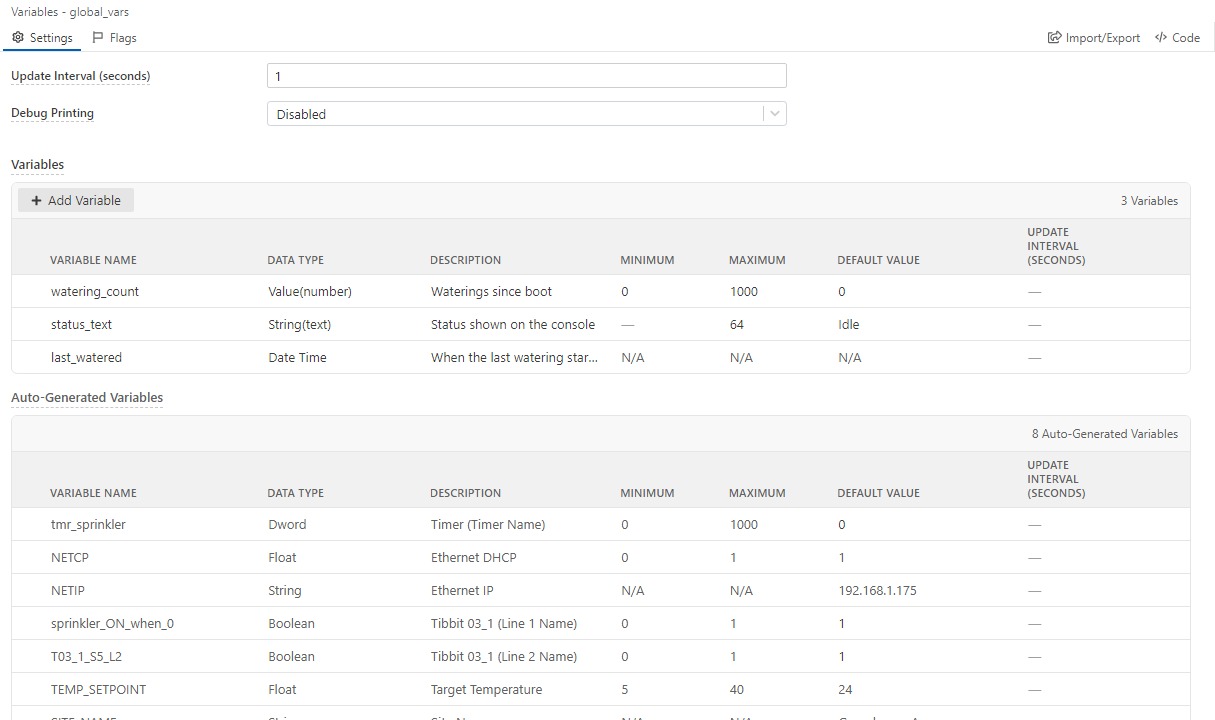
Open the Features step and select Variables in the General category.
| Option | Description |
|---|---|
| Update Interval (seconds) | How often hardware variables are read, from 1 to 600 seconds. Default: 1. Individual variables can override it. |
| Debug Printing | Prints each variable's value when it changes, for example VAR> watering_count changed from 3 to 4. Messages go to the output selected in General › Debug Print Output. |
Creating a variable
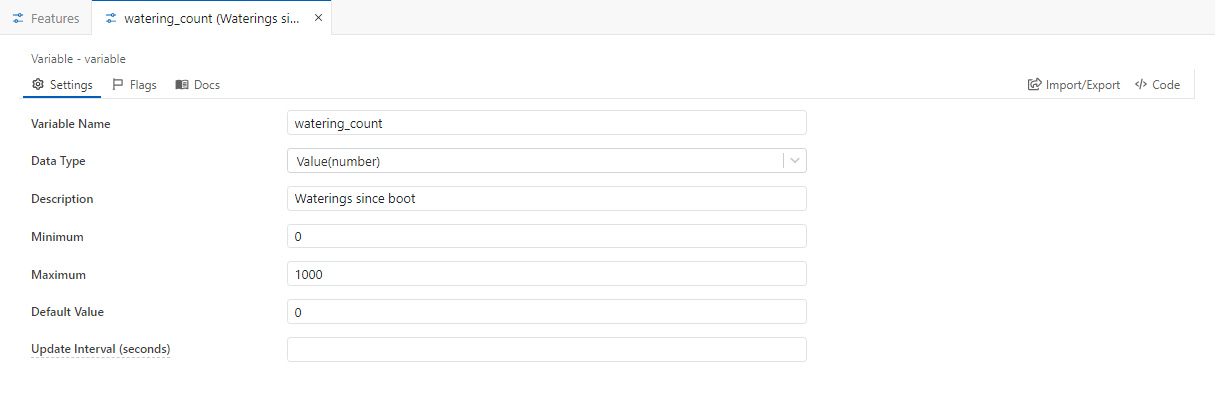
Click Add Variable, then edit the new row in place, or click the pencil icon to open it in its own tab:
| Property | Description |
|---|---|
| Variable Name | The name you pick in blocks. Letters, digits and underscores, starting with a letter. It must be unique among all named items in the project (variables, settings, timers and so on). |
| Data Type | Value(number), String(text), Date Time or Time. See Data types. |
| Description | A note for yourself and for dashboards. |
| Minimum / Maximum | For numbers, the allowed range. Values outside it are clamped when the variable is set. For text, Maximum is the maximum length. Not used for Date Time and Time. |
| Default Value | The value at boot. |
| Update Interval (seconds) | For hardware variables, how often this one is read, from 0.001 to 60 seconds. Leave it blank to use the global Update Interval. |
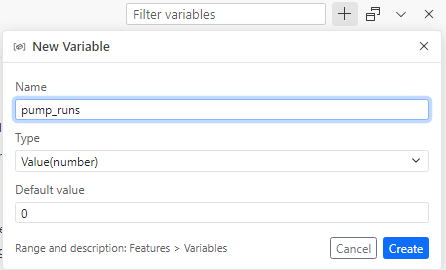
You can also create a variable without leaving the canvas. In the Variables panel click +, or in a block parameter pick Create New Variable. A small form asks for the name, type and default value:
Data types
| Type | Holds | Stored as |
|---|---|---|
| Value(number) | Integers and decimals | IEEE 754 floating point |
| String(text) | Text | UTF-8. Maximum sets the length. |
| Date Time | A date and time | Unix timestamp: seconds since 1970-01-01 00:00:00 UTC |
| Time | A time of day | Seconds since midnight |
Linked variables can also have the hardware's native types, such as Boolean for an I/O line or Word for an ADC reading. They are shown in the Data Type column.
Using variables in blocks
Reading a variable
Any block parameter can contain variables. Open the parameter's dropdown to see what you can insert:
- Parameters are outputs of the blocks before this one in the flow, such as
value_oldfrom On Variable Changed ortime_nowfrom Get Current DateTime. - Variables are all project and linked variables.
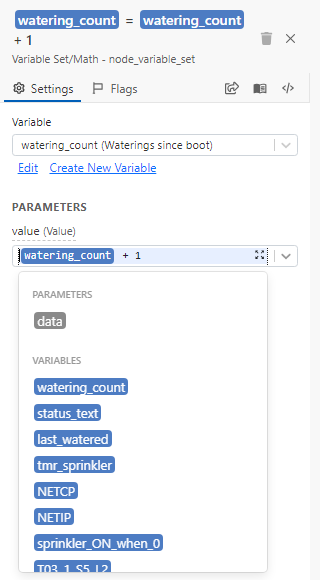
Inserted variables appear as blue tags. You can mix them with text and math, for example watering_count + 1 or Watering (cycle watering_count).
Variable Set/Math
Variable Set/Math assigns a value to a variable. The value can be a constant, another variable or an expression.
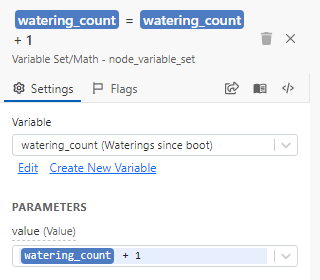
This flow counts watering cycles each time the water_now command runs, then updates a status message:

What setting a variable does depends on what it is linked to:
On Variable Changed
On Variable Changed starts a flow whenever the selected variable gets a different value. Setting a variable to the value it already has does not fire the event. The block outputs value_old, the previous value, and the variable itself holds the new one.
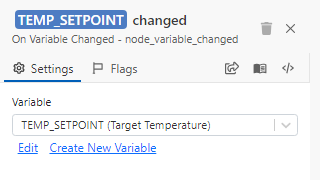
The change can come from anywhere: a block, a sensor reading, the Web Console, LUIS or the cloud.
A flow that starts with On Variable Changed for a variable can't set that same variable further down the flow. The editor reports Recursion not allowed.
Hardware variables
When you add hardware in the Hardware step, AppBlocks creates a variable for each sensor value and I/O line.
- Sensors and inputs are read at the update interval. When a new reading differs from the last one, On Variable Changed fires.
- Outputs such as relays and GPIO lines follow the variable. Setting the variable to 1 drives the line HIGH and 0 drives it LOW.
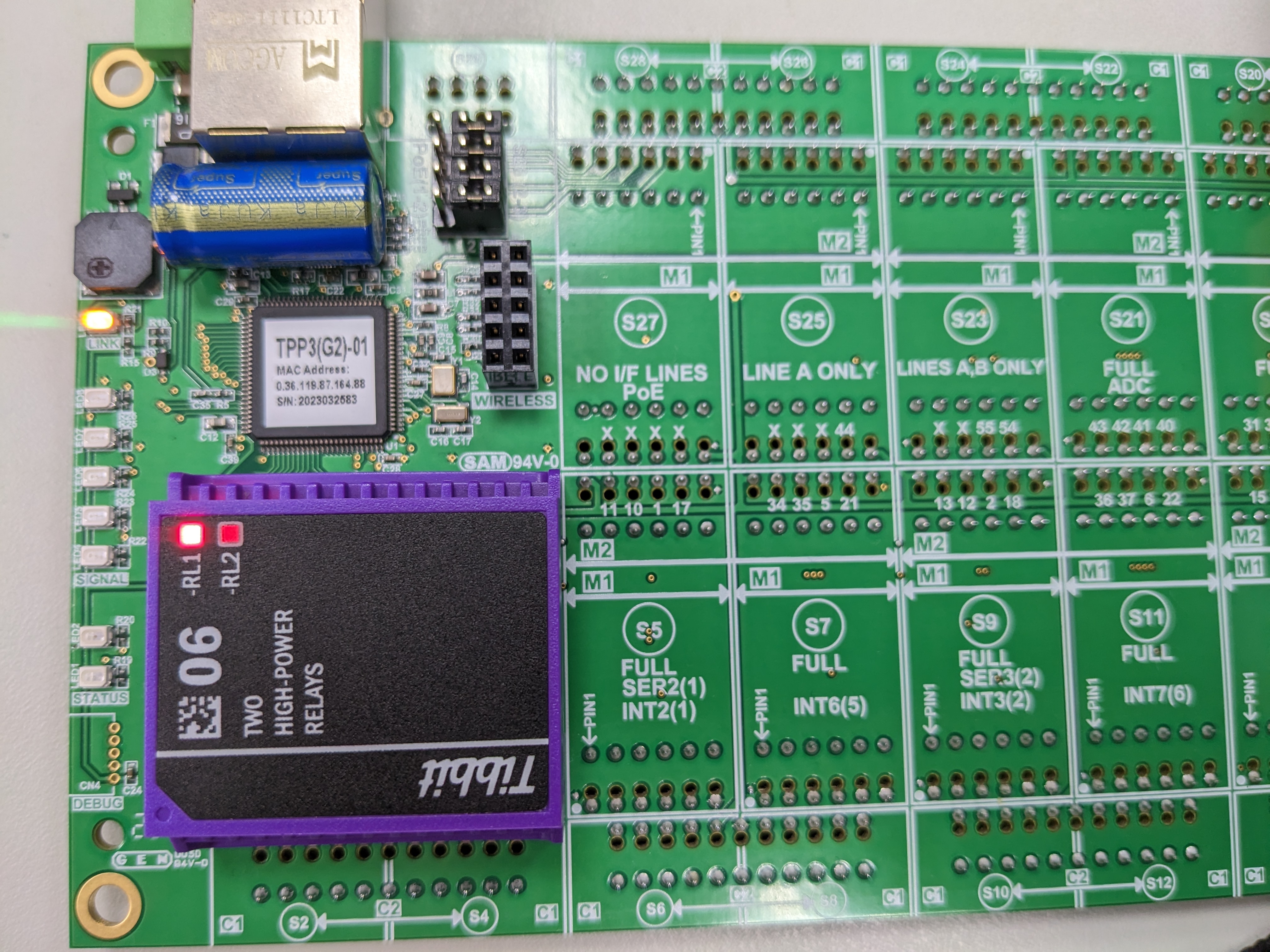
Hardware is only read as often as its update interval, so a very short event can be missed. For pulses and button presses, use the dedicated event blocks, such as On Button Pressed or Interrupt.
The Variables panel
The Variables tab of the bottom panel lists every variable in the project. Open it from the panel's tab strip or click the variables count in the status bar.
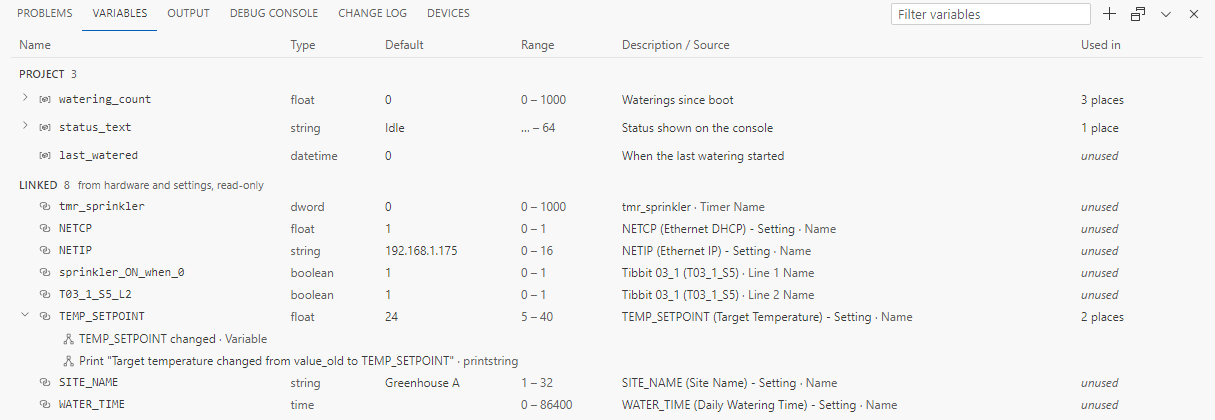
- Project lists your variables. Linked lists variables that come from hardware, settings and timers.
- Description / Source shows where a linked variable comes from. Click it to go to that feature.
- Used in counts the blocks and features that use the variable. Click it to list them, which is a quick way to find out what breaks if you delete a variable. Unused variables are marked unused.
- Click a name to edit the variable. Use the trash icon to delete a project variable.
- Type in Filter variables to search by name, description or source.
Live values while debugging
When you run the application in debug mode, the panel adds a Value column with each variable's current value on the device. Click a value to change it on the device; press Enter to apply or Escape to cancel. Use the refresh buttons to read the latest values.
Troubleshooting
| Message in Problems | What to do |
|---|---|
| Invalid Variable: … | A block refers to a variable that no longer exists. Pick another variable in the parameter. |
| Variable is not defined | Select a variable in the block's Variable field. |
| Recursion not allowed | See Avoid loops. |
| Default value must be a number | Enter a numeric Default Value for a Value(number) variable. |
| Default value must be greater than / less than … Parameter | Move the default inside Minimum and Maximum. |
| Name conflict: … No duplicate names allowed. | Another item in the project has the same name. Rename one of them. |