Data Tables
Data Tables store rows of structured data on the device, like a small database. Where a variable or a setting holds one value, a table holds many records with the same fields.
Typical uses:
- Lists that users maintain, such as authorized card IDs, watering schedules or Modbus devices to poll.
- Logs and time series, such as sensor readings every minute or door events.
- Lookup data, such as a table that maps product codes to recipes.
Where to find tables
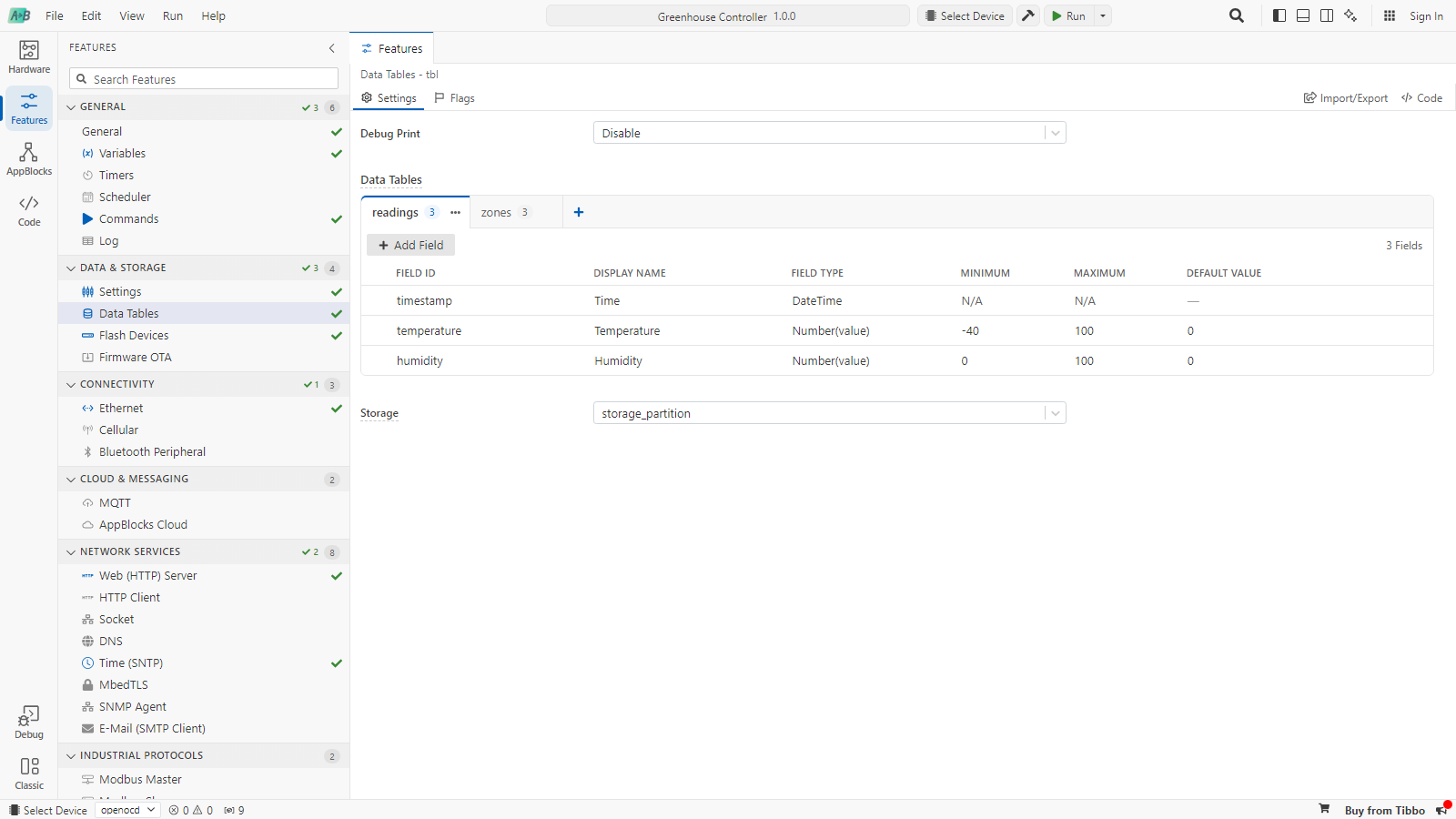
Open the Features step and select Data Tables in the Data & Storage category. Each table is a tab. Click + to add a table and Add Field to add fields to the selected table.
| Option | Description |
|---|---|
| Debug Print | Prints table operations to the debug output. |
| Storage | (Zephyr) The flash partition that holds the tables. |
Designing a table
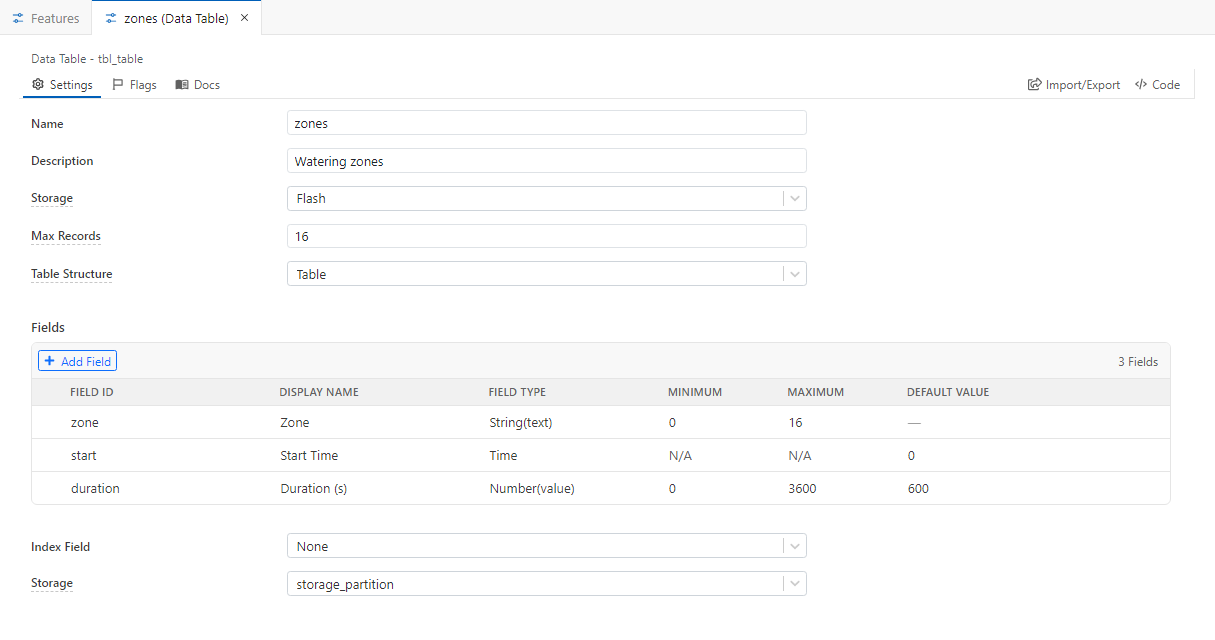
Double-click a table's tab, or choose Edit from its ⋯ menu, to open the table's properties:
| Property | Description |
|---|---|
| Name | The table's name, used in blocks, the Web Console and scripts. Must start with a letter. |
| Description | An optional note, up to 225 characters. |
| Storage | Flash keeps the data across reboots. In Memory keeps the table in RAM: it's faster, but it is emptied at every boot. See In-memory tables. |
| Max Records | The maximum number of rows, up to 65535. 0 means unlimited. What happens when a table is full depends on its structure. |
| Table Structure | Table for records you look up, update and delete. Log for append-only records, such as time series. |
| Number of Key Fields | (TiOS) The number of fields, counted from the first, that together must be unique. An insert that would duplicate a key fails. |
| Fields | The table's columns. See Fields. |
| Index Field | (Zephyr, Table structure) A field to index in RAM, which speeds up Equals lookups on that field. |
| Storage | (Zephyr) The flash partition for this table. |
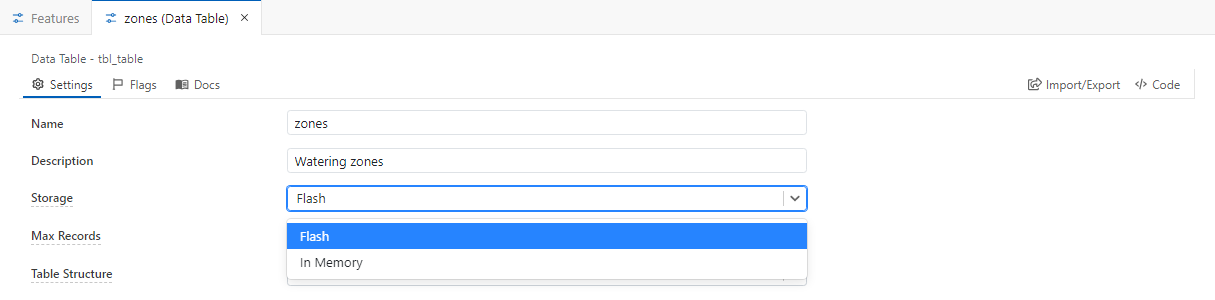
Table or Log?
| Table | Log | |
|---|---|---|
| Update and delete rows | Yes | No, append only |
| When full | New rows are rejected | The oldest rows are dropped to make room |
| Good for | Lists, schedules, lookups | Readings, events, audit trails |
| Web Console page | Database | Log (shown when the Log feature is enabled) |
On Zephyr, Max Records limits Log tables. Table-structure tables grow until the storage is full.
Fields
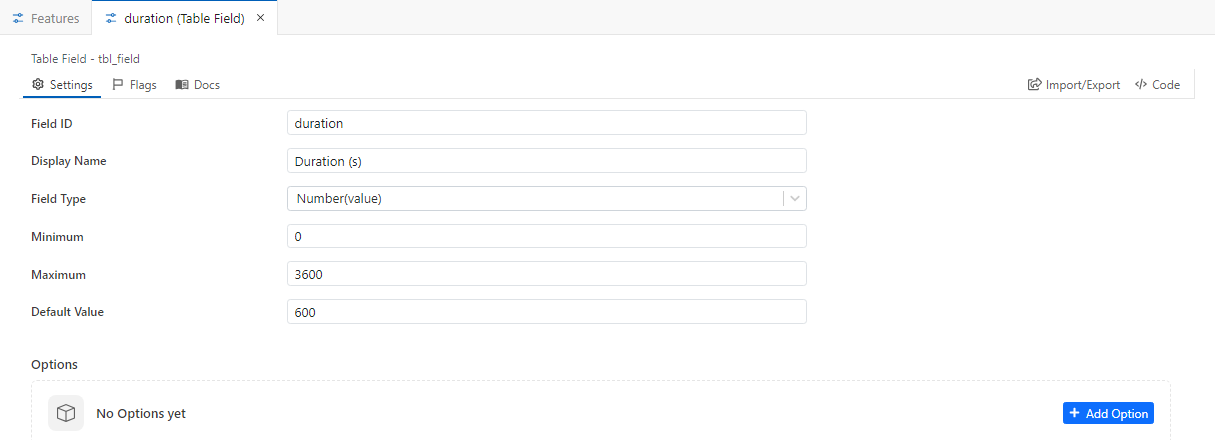
Select a table's tab and click Add Field, then click the pencil icon on a row to open the field:
| Property | Description |
|---|---|
| Field ID | The field's name in blocks and scripts. Up to 32 letters, digits and underscores; can't start with a digit. |
| Display Name | The column title in the Web Console. |
| Field Type | String(text), Number(value), DateTime or Time. |
| Minimum / Maximum | For numbers, the allowed range. For text, the length. Not used for DateTime and Time. |
| Default Value | The value used when a row is added without one. |
| Options | An optional list of label/value pairs. The Web Console shows the field as a dropdown. |
| Field type | Holds | Takes |
|---|---|---|
| String(text) | Text, up to 128 characters | Maximum + 1 bytes |
| Number(value) | A 32-bit floating-point number | 4 bytes |
| DateTime | A date and time (Unix timestamp) | 4 bytes |
| Time | A time of day (seconds since midnight) | 4 bytes |
A row can take at most 128 bytes: one byte plus the size of each field. Keep Maximum of text fields as small as the data allows.
In-memory tables
A table with Storage set to In Memory holds up to 30 rows in RAM. For Table-structure tables you can fill in In-Memory Rows in the editor; the table is reloaded with those rows at every boot. This makes in-memory tables handy for fixed lookup data that you want to edit in the project rather than on the device.
System tables
Two Log tables are managed for you:
- LOG is added when the Log feature is enabled. It stores the messages of the Add to Log block.
- DEBUG is added when General › Debug Print Output is set to Store in Logs.
Both have a timestamp and a value field. You can't rename them or change their fields.
Using tables in blocks
The table blocks are in the Data & Storage category of the block library. Every block has a Table setting that selects the table it works on.
| Block | What it does | Outputs |
|---|---|---|
| Table Insert Row | Adds a row. Each field is a parameter, pre-filled with the field's default value. | Done |
| Table Lookup | Finds one row where a field matches a value. | Record Found with row_index and every field, or Record Not Found |
| Table Lookup Compound | (Zephyr) Finds one row that matches several conditions, all of which must be true. | Same as Table Lookup |
| Table Update Row | Changes fields in the first row that matches a condition. | Done |
| Table Update Row Compound | (Zephyr) Same, with several conditions. | Done |
| Table Delete Row | Deletes the first row that matches a condition. | Done |
| Clear Table | Deletes all rows. | Done |
| Table Row Count | Counts the rows. | Row Count with rows |
Adding rows
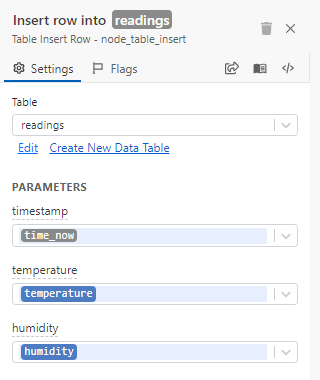
This flow logs the temperature and humidity every time the temperature changes. Get Current DateTime provides time_now for the timestamp field:

Looking up rows
Table Lookup searches one field with an operator: Equals, Not Equal, Greater Than, Greater Than Equal To, Less Than or Less Than Equal To.
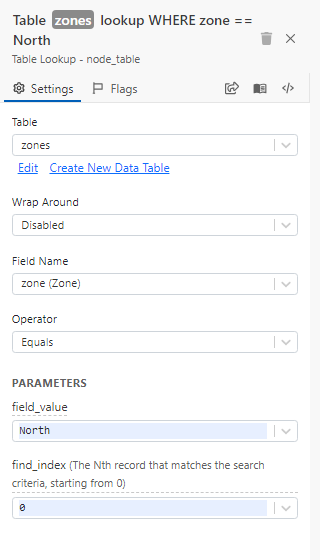
- field_value is the value to compare with. It can contain variables and parameters from earlier blocks.
- find_index picks which match to return when several rows match: 0 for the first, 1 for the second, and so on. To go through all matches, repeat the lookup with an increasing index until Record Not Found fires.
- With Greater Than and Less Than operators, matches are ordered by the field's value, so index 0 is the closest match. For example, Time Greater Than Equal To 08:00 returns the next entry of a schedule.
- Wrap Around: when nothing matches a Greater or Less operator, return the row with the lowest value (for Greater) or the highest value (for Less) instead. Use it for schedules that wrap past midnight: after the last entry of the day, the lookup returns the first one.
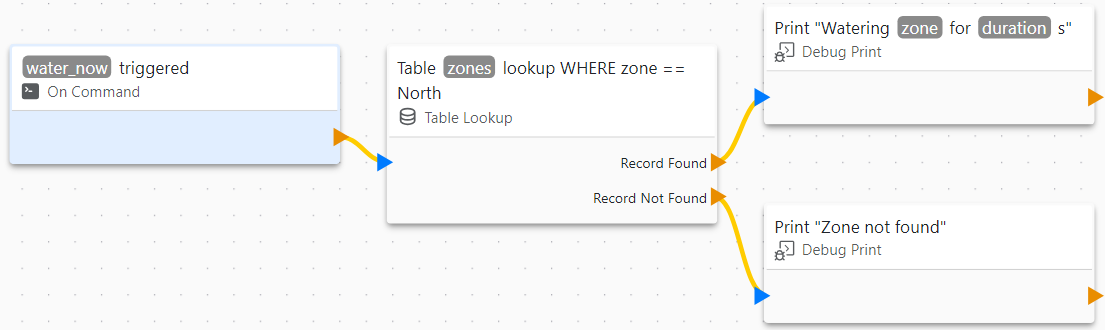
Record Found passes every field of the row to the blocks that follow, together with row_index:
Updating, deleting and counting
Table Update Row and Table Delete Row use the same field, operator and value as a lookup, and act on the first matching row only. They continue to Done whether or not a row matched, so if you need to know, look the row up first.

Storage and reboots
- Flash tables keep their rows across reboots and power loss. In Memory tables start empty (or with their In-Memory Rows) at every boot.
- Flash has a limited number of write cycles. Logging every second for years is fine for a Log table; rewriting the same row many times a second is not.
When you upload an application in which a table's fields or structure have changed, the device can't read the old rows. On Zephyr the changed table is recreated empty. On TiOS the flash disk is formatted and all tables are emptied. Export the data from the Web Console first if you need it.
Managing tables from the Web Console
The Web Console lets users view, search, add, edit, delete, import and export rows. Tables are not shown until you add them:
- Open Features › Web Console and select Database in the console preview.
- Click Edit and then Add Table, and choose the table. Name sets the title of its tab.
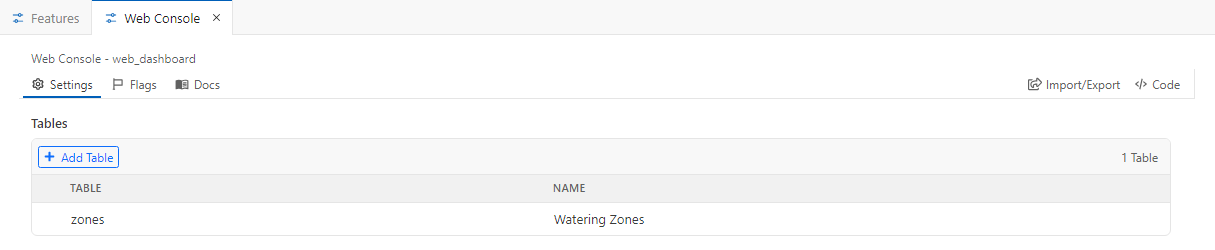
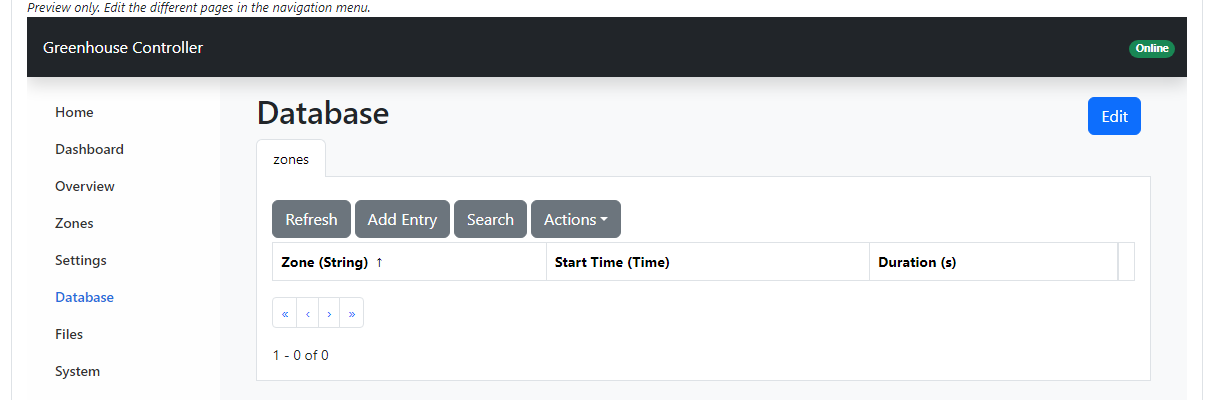
Only Table-structure tables can be added to the Database page. Log tables are shown on the Log page. On Zephyr, adding, editing, deleting and clearing rows require the Web Console administrator account (Web Console › Advanced).
Tables can also be read and changed from custom pages and synchronized with AppBlocks Cloud, where device groups can manage the same table on all their devices.
Troubleshooting
| Message in Problems | What to do |
|---|---|
| Table requires at least one field | Add a field. |
| Fields total maximum size of table … must not exceed 128 bytes | Lower Maximum of text fields or remove fields. |
| Duplicate field names | Give each field a unique Field ID. |
| Field ID cannot start with a number / cannot be a reserved keyword | Rename the field. |
| Number of Key Fields must not exceed number of fields | Lower Number of Key Fields. |
| In Memory Table must have less than 30 rows | Remove rows from In-Memory Rows, or store the table in flash. |
| Default value must be a number | Enter a numeric default for Number fields. |
| Table is not valid | A block refers to a table that was deleted. Choose another table in the block. |