LCD Menu
The LCD menu is a user interface the device builds for itself. You choose which settings and data tables it shows; the device draws the pages, the editors and the key hints. Users operate it with the four keys of the keypad, or by touch on a touch screen, without a computer or a network connection.
The menu offers:
- Settings, in groups, with the four control types of the other interfaces: text box, IP address, password and dropdown.
- Data tables: browse the records of a table page by page, open one, and add, edit, delete or clear records where the table allows it.
- Network status: link, address and MAC of the device.
- Reboot, behind a confirmation.
The menu opens over the screens of the LCD feature and leaves them as they are. Widgets keep updating underneath, and the screen is back as soon as the menu closes.
Opening the menu
Run the Enter LCD Menu block from any event, typically On Button Pressed for the MD button or On Keypad for one of the keys. While the menu is open, the four keys belong to the menu.
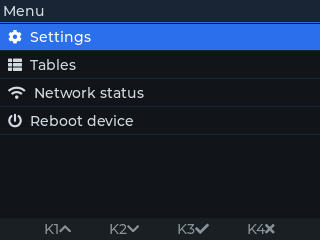
The bar at the bottom always shows what each key does on the current page:
| Key | On a page | In an editor |
|---|---|---|
| K1 | Move up | Step the selected position up; hold the key to go faster |
| K2 | Move down | Step it down |
| K3 | Open the selected entry, or start editing the selected setting | Move to the next position; after the last one, store the value |
| K4 | Go back one page; at the root, close the menu | Cancel the edit |
On a touch screen the same four actions are on-screen buttons, rows are taller, and a time or a date is set on wheels instead of digit by digit.
Settings
Settings are added to the menu in the Settings section of the LCD feature. Each group becomes an entry of the menu, and each setting in a group a row of that group's page. It is the same groups model as the Web Console, LUIS and DS Manager, so a setting is linked to a group the same way; see Exposing settings to users.
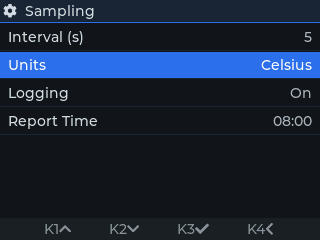
| Property | On the menu |
|---|---|
| Connected Setting | The setting the row shows and edits. |
| Setting Display Name | The label of the row. |
| UI Control Type | Text Box, IP Address, Password or Dropdown; see Control types below. |
| Edit Mode | Read Only rows show the value, drawn dimmer, and cannot be opened. |
The layout of the root depends on what is on the menu. A single group puts its settings directly on the root page; several groups put one row per group. When tables are on the menu as well, the settings move behind a Settings entry and the root is titled Menu.
Control types
Pressing K3 on a setting opens its editor in a box over the page. Every editor works the same way: the value is shown with one position selected and a caption says which one it is, K1 and K2 change that position, K3 moves to the next one and stores the value after the last, and K4 cancels, drawn in red while an edit is open. Holding K1 or K2 repeats the step and speeds up, so a long way round a position takes a couple of seconds. What a position is depends on the control type and on the setting.
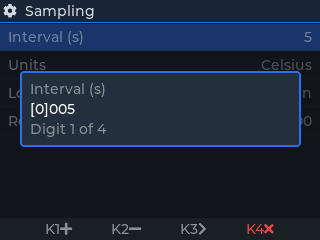
| Control type | How the value is edited |
|---|---|
| Text Box | A text setting is edited character by character, each position cycling through letters, digits and punctuation. A number setting is edited digit by digit, one position per digit of its Maximum, when its range is whole numbers from 0 to 65535; a wider, negative or fractional range is typed as text with the digits, the minus sign and the decimal point. A time or date setting is edited field by field: hours and minutes, or year, month, day, hour and minute. |
| IP Address | For a text setting that holds an IPv4 address. The value is edited octet by octet: each of the four positions runs from 0 to 255, so an address never needs retyping and cannot be malformed. |
| Password | A text setting edited as a text box, except that the row shows a mask and the editor only reveals the character being edited. |
| Dropdown | A page of the options with a check mark on the current one. K3 picks the selected option and K4 keeps the old one; the key hints turn green and red to say so. |
A value is checked against the setting's Minimum and Maximum before it is stored, and refused otherwise.

A stored value behaves like one saved from any other interface: the setting's variable is updated at once and On Variable Changed fires. A feature property that is only read at startup, such as an IP address, is applied after the next reboot, which the Reboot device entry is there for.
Data tables
Tables are added in the Tables section of the LCD feature. Choose the table and the label to show for it. The menu reads everything else from the table's definition: its fields, their types and whether it is a Table or a Log (see Table or Log?). Tables on the menu need the Zephyr runtime.
The Tables entry of the root lists the tables. Opening one shows its records a page at a time, with the id and as many fields as fit the width as columns. The header gives the current page, the number of pages and the number of records.
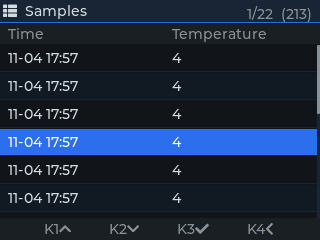
The list starts with New record when records can be added, and ends with the paging rows, First page, Previous page, Go to page, Next page and Last page, followed by Clear table. The cursor stays on a paging row after it is used, so holding a page turn down with repeated presses is natural. Clear table asks for a second press and turns red while it waits for it.
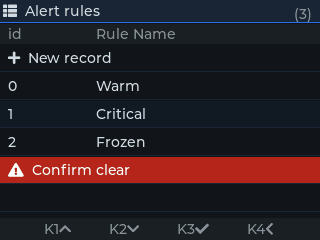
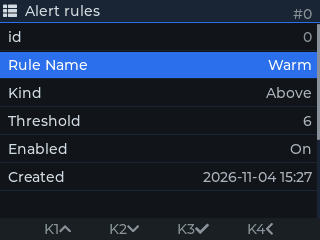
Selecting a record opens it with every field on its own row. On a Table, the page ends with Save record, Delete record and Cancel. A field is edited like a setting, with a dropdown for an enumerated field, and nothing is written to the table until Save record is picked. Delete record asks for a second press like Clear table does.
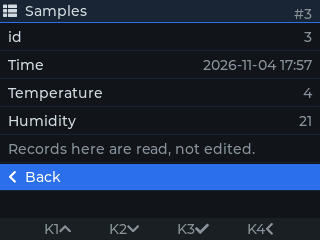
A Log is different, because its records are a time series that the application writes:
- The list opens on its newest page.
- Records are read, not edited: the record page ends with Back and says so.
- New record is only offered when no block of the project inserts into the log; a log the application appends to can only be cleared from the menu.
Rows that blocks add, change or remove while a list is open appear the next time the list is read, when a page is turned or the list reopened.
Network status and reboot
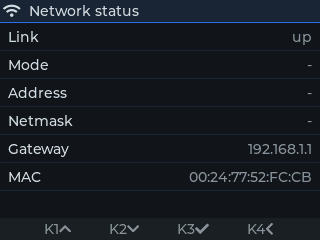
Network status shows the link state, the mode, the address, netmask and gateway in use, and the MAC address.
Reboot device opens a confirmation page. Yes, reboot now restarts the device; No, go back is selected by default so that a stray press does nothing.
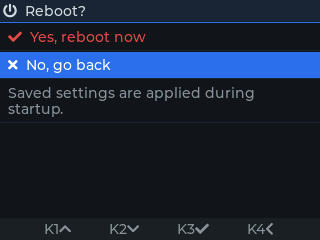
Taking a picture of the menu
The Take Screenshot block captures what is on the display, the open menu included, to a file on the device. The pictures on this page were taken that way.