Feature Flags
A feature flag is a named on/off switch for a group of items in your project. When a flag is off, everything associated with it is left out when the firmware is generated. Use flags to build several variants of a product from one project, instead of keeping a copy of the project per variant.
For example, a Modbus gateway sold with and without a display, and with two or four RS485 ports, can be one project with two flags:
| Flag | Associated items | Variant when the flag is off |
|---|---|---|
| LCD | The LCD for TPP2 feature and the LCD Text Widget blocks that update the screen | Gateway without a display |
| Ports 3-4 | The third and fourth Tibbit #05 (RS485 ports) and the blocks that handle ports 3 and 4 | Two-port gateway |
Managing flags
Flags are defined in the Feature Flags manager. Open it with the Manage flags… button on any Flags tab. Each flag has a name, an On/Off switch and a count of the items associated with it. Add Feature Flag creates a flag and Remove deletes one.
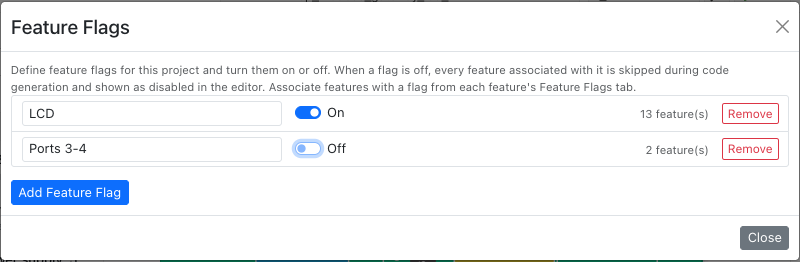
Flipping a switch here is all it takes to change variants. The associations stay in place, so you can switch a flag back on at any time.
Associating items with a flag
Features, Tibbits and blocks each have a Flags tab next to their Settings tab. It lists every flag in the project with its current state. Tick a flag to associate the item with it. New flag creates a flag and ticks it for the current item in one step.
Features
Select a feature in the Features step and open its Flags tab. Here the LCD for TPP2 feature is associated with the LCD flag:
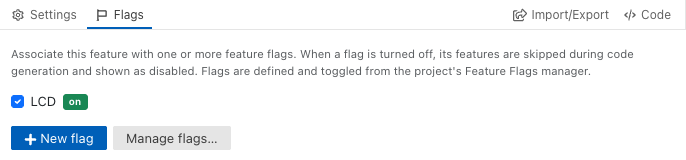
When the flag is off, the feature's properties are greyed out and the feature is left out of the firmware, as if it were disabled.
Tibbits
Click a Tibbit on the board in the Hardware step and open the Flags tab in the panel on the right. Here the fourth Tibbit #05 is associated with the Ports 3-4 flag:
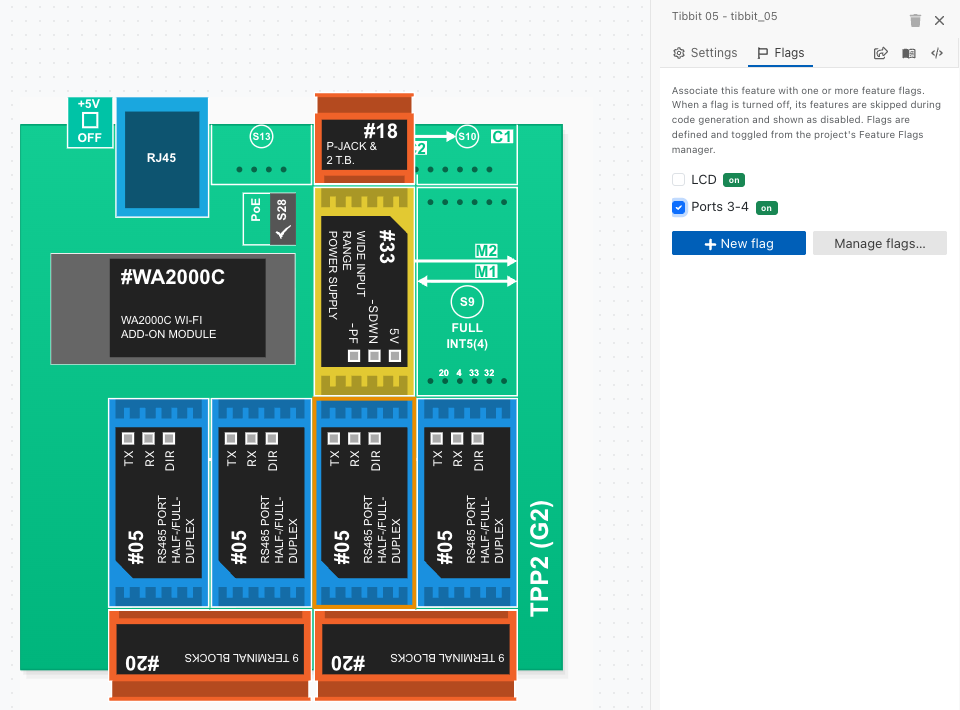
When the flag is off, the Tibbit stays on the board in the editor, but no code is generated for it: its serial port is not configured or used by the firmware.
Block chains
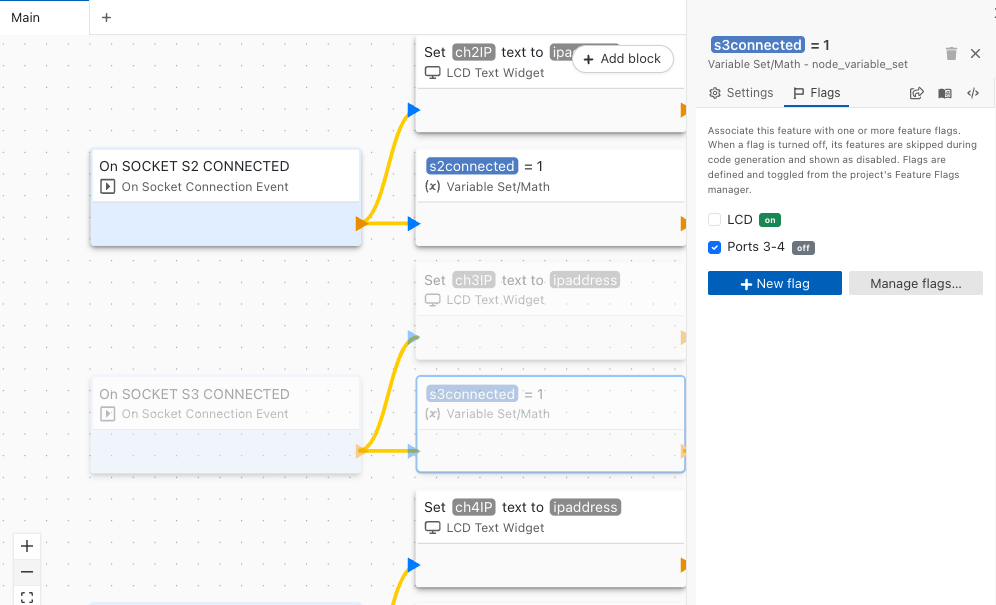
Click a block in the AppBlocks step, or find it in the Blocks tab of the sidebar, and open its Flags tab. When a flag is off, its blocks are faded on the canvas and left out of the firmware. Here the chain that handles a connection to port 3 is flagged with Ports 3-4, which is off, while the same chains for ports 2 and 4 stay active:
How flags combine
- A flag covers only the items you tick. Flagging an event block does not flag the blocks connected to it. Associate every block of the chain, from the event to the last action, so that no part of it is left behind.
- Items that a flagged item uses are not flagged with it. In the example above, the s3connected variable and the socket server for port 3 are still generated. Flag them too if the variant must not include them.
- An item with several flags is left out when any of them is off. The Set ch3IP block above is associated with both LCD and Ports 3-4. It is faded and skipped while Ports 3-4 is off, even though LCD is on.
After switching a flag, check the Problems tab for anything that still refers to a skipped item, and use the Code step to see exactly what is generated.