Hardware
The Hardware step describes the physical device your application runs on: the board, the Tibbits or peripherals on it, and the pins they use. You don't write drivers or initialization code. AppBlocks generates it from this description, and it turns each sensor value and I/O line into a variable that your blocks read and write.
Boards and runtimes
You pick the board when you create a project. The New project page lists every supported board, with filters for the runtime and for capabilities such as Wi-Fi, Ethernet, Bluetooth, USB, CAN and displays. Selecting a board shows its SoC, memory, capabilities and the features available for each runtime.
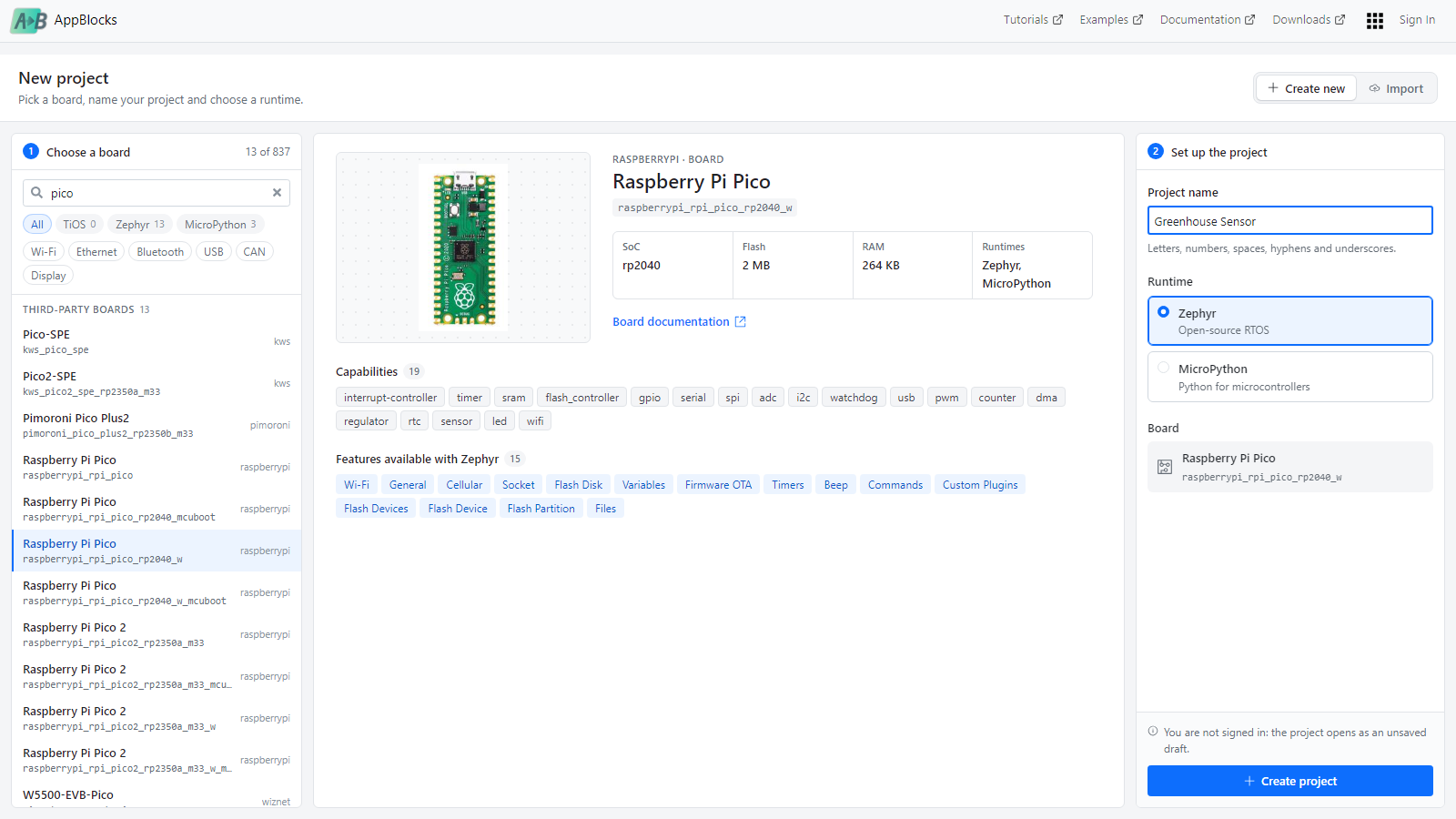
The runtime is the operating system the generated firmware is built for:
| Runtime | Boards | Notes |
|---|---|---|
| TiOS | Tibbo boards: Tibbo Project System (TPP2, TPP3), DS1101, DS1102, EM510 | Tibbo's operating system. Supports Tibbits, the LCD and keypad of the TPP2, DS Manager and the 1-Wire sensors feature. |
| Zephyr | Hundreds of third-party boards (Espressif, Nordic, Raspberry Pi, ST and more) and the TPP2/TPP3 | Open-source RTOS. Adds features such as SNMP Agent, SMTP and MbedTLS. |
| MicroPython | A subset of Zephyr boards, such as the Raspberry Pi Pico | Python for microcontrollers. |
The board and runtime decide which features and blocks are offered. A feature or block that needs something the board doesn't have, such as Ethernet or a real-time clock, is not listed at all.
See Supported Boards for the list, or request a board that isn't supported yet.
The board can't be changed after the project is created. On boards with more than one runtime you can switch runtimes in File › Application Details… › Runtime. AppBlocks asks whether to Convert the project in place or Make a Copy with the new runtime. Some features may not carry over.
Two kinds of hardware editor
What the Hardware step looks like depends on the board:
| Board | Hardware step | You configure |
|---|---|---|
| Tibbo Project System (TPP2, TPP3) | A picture of the board with numbered sockets | Which Tibbit goes in which socket |
| Any other board | A pin diagram of the board | Peripherals (sensors, buses, LEDs, buttons…) and the pins they use |
Tibbo Project System: Tibbits
The Tibbo Project System (TPS) is a modular board. Its capabilities come from Tibbits: small modules and connectors that plug into sockets on the board. A relay Tibbit, a temperature sensor and a terminal block can be combined in any order the sockets allow.
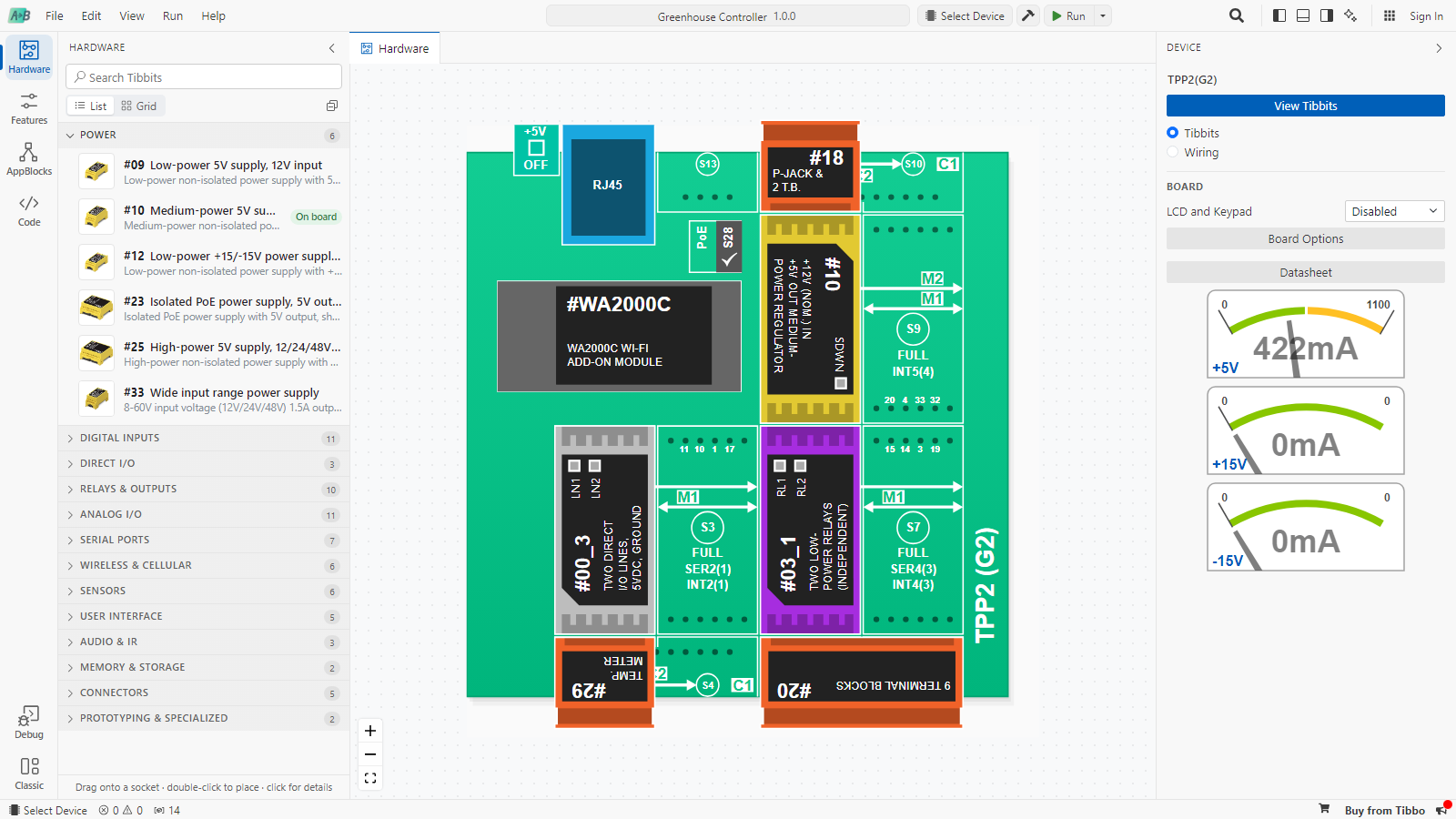
- The Tibbit library on the left lists every Tibbit by function: Power, Digital Inputs, Relays & Outputs, Analog I/O, Serial Ports, Sensors and so on. Drag a Tibbit onto a socket, or double-click it and pick one of the highlighted sockets. Tibbits that don't fit any socket on the board are marked Not available on this board.
- Module sockets (S1, S3, S5…) take Tibbit modules. Connector sockets (S2, S4, S6…) take connector Tibbits, such as terminal blocks, that bring a module's lines out of the enclosure. The socket labels show which serial ports and interrupt lines each socket has, and only sockets with the lines a Tibbit needs accept it.
- The Device sidebar on the right has the board options (the TPP2's LCD and Keypad, PoE and enclosure options), a Datasheet button, and power meters for the +5V, +15V and -15V rails.
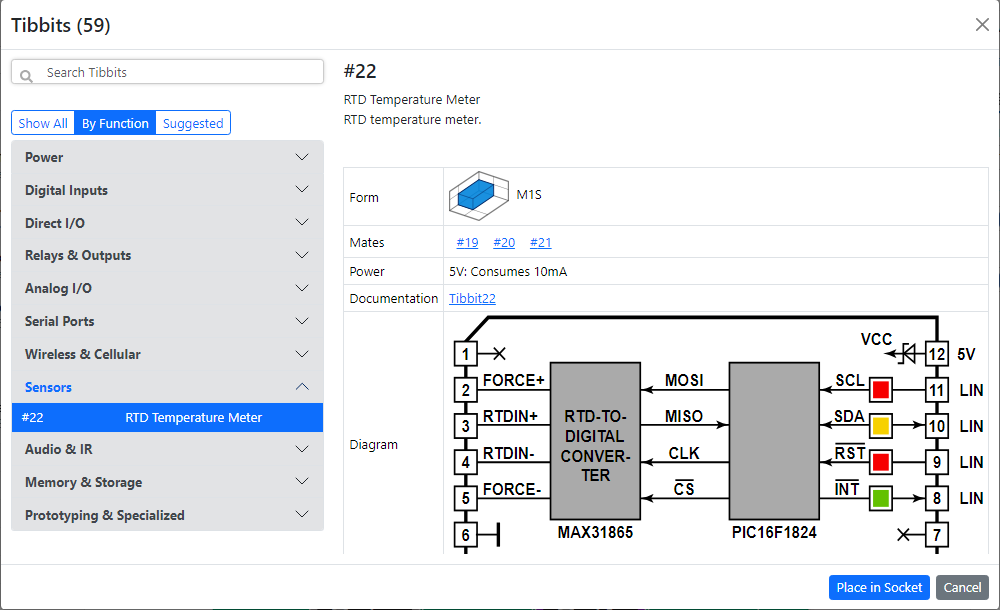
Click an empty socket to open the Tibbit picker, filtered to the Tibbits that fit. Suggested lists the Tibbits that pair with the neighboring socket.
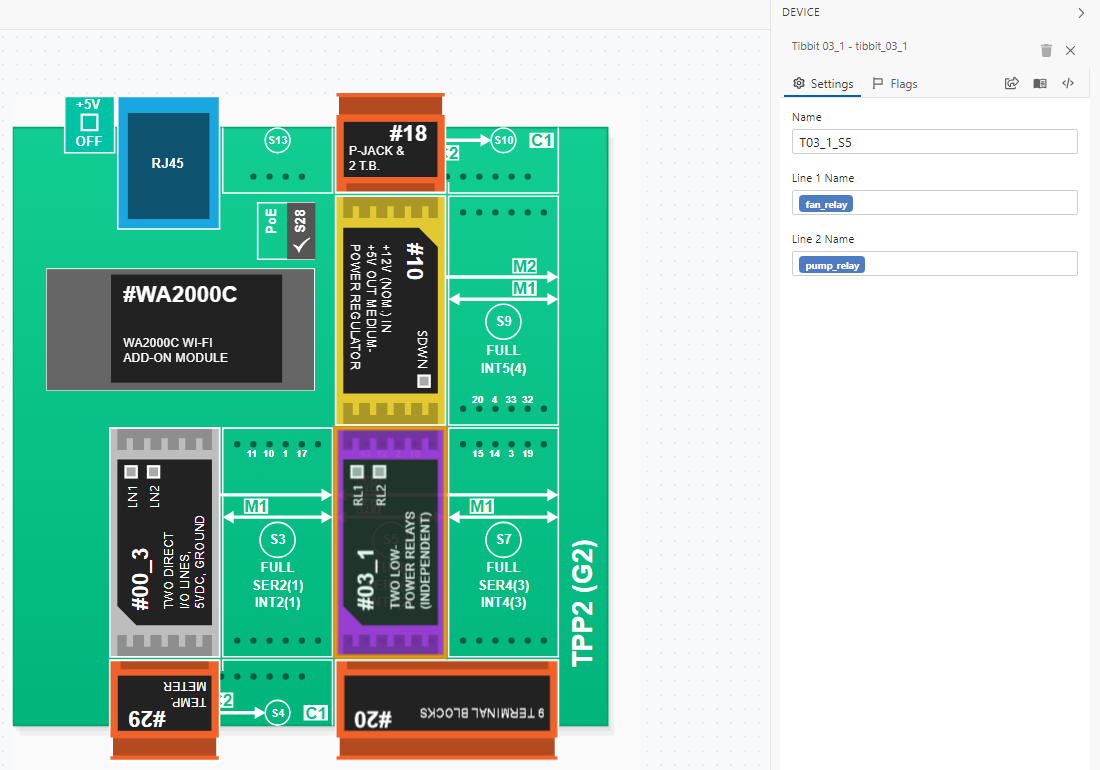
Click a placed Tibbit to configure it in the Device sidebar. For I/O Tibbits, each line has a name. That name is the name of the line's variable, so give it one that reads well in your blocks:
Drag a placed Tibbit to move it to another socket. Right-click it and choose Delete to remove it.
AppBlocks checks the combination as you build it and marks problem sockets with a warning icon:
| Warning | Meaning |
|---|---|
| Connector required | The module needs a connector Tibbit in the socket next to it to bring its lines out. |
| Tibbit required | A connector was placed without a module to connect to. |
| Incorrect pair | The module and connector don't mate. Check the Tibbit's Mates list. |
| Board Error: Not enough power for 5V. Add a Tibbit #10 or Tibbit #33 | The Tibbits draw more current than the board's supply provides. |
| RF Connector Required for Wifi | The WA2000U Wi-Fi module needs Tibbit #37 for its antenna. |
Other boards: peripherals and pins
On every other board you add peripherals and assign them to pins. When you create the project, AppBlocks already adds the board's built-in peripherals, named after the board's own definitions, such as led0, uart0, spi0, i2c0 and adc.
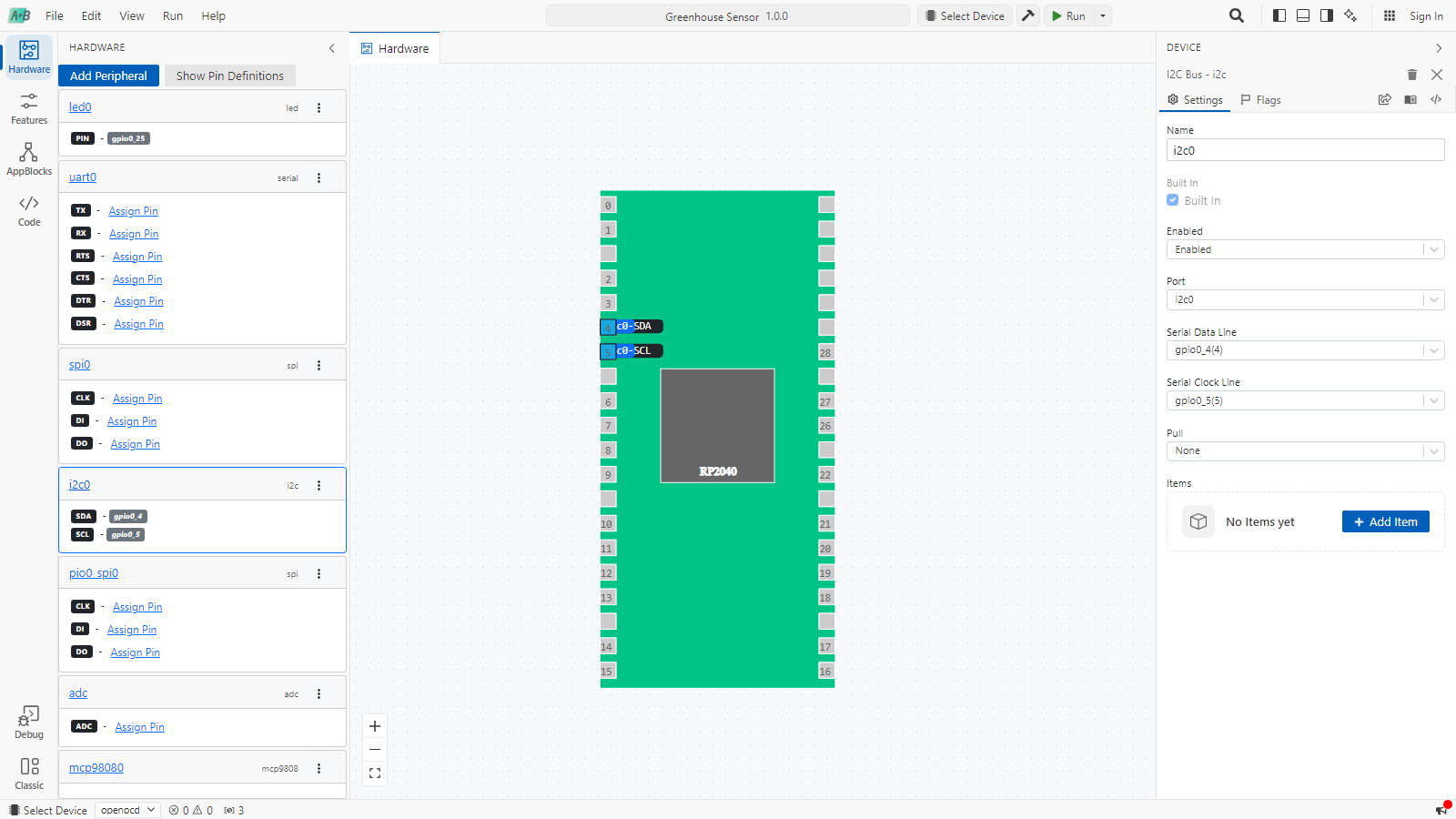
Click Add Peripheral, choose the Type and, for buses with more than one port, the Port/Channel, and click OK.

Assign pins. Click Assign Pin next to a signal on the peripheral's card, then click a pin on the board diagram. The banner at the bottom shows what you're assigning; click Cancel to stop. You can also choose pins from the dropdowns in the Device sidebar. Show Pin Definitions labels every pin with its functions.
Configure the peripheral in the Device sidebar. Devices on a bus, such as an I2C sensor, reference the bus they're on.
Until a peripheral is complete, its card has a red border and its missing settings are highlighted:
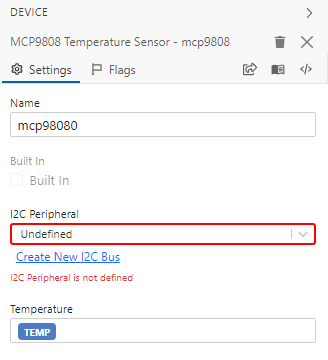
Typical messages are SDA pin not set for …, TX pin not set for … and I2C Peripheral is not defined. A pin can only be used once: clicking a pin that is taken shows Pin already used by ….
The peripheral types depend on the runtime. They include:
| Group | Peripherals |
|---|---|
| General I/O | GPIO Pin, LED, Button, PWM, Servo Motor, ADC Peripheral, IR Transceiver |
| Buses | I2C Bus, SPI Bus, UART Serial Port, I2S Bus |
| Sensors | DHT11, DHT22, MCP9808, SHTC3 |
| Displays | SSD1306 OLED, ST7789, ILI9341, ILI9342C |
| Storage | SD Card on SPI, SD Card MMC/SDIO |
See Drivers for details.
Hardware becomes variables
Every sensor value and I/O line you add gets a variable with the same name. These auto-generated variables are listed in Features › Variables. They follow the hardware: rename the line and the variable is renamed, remove the Tibbit or peripheral and the variable goes with it.
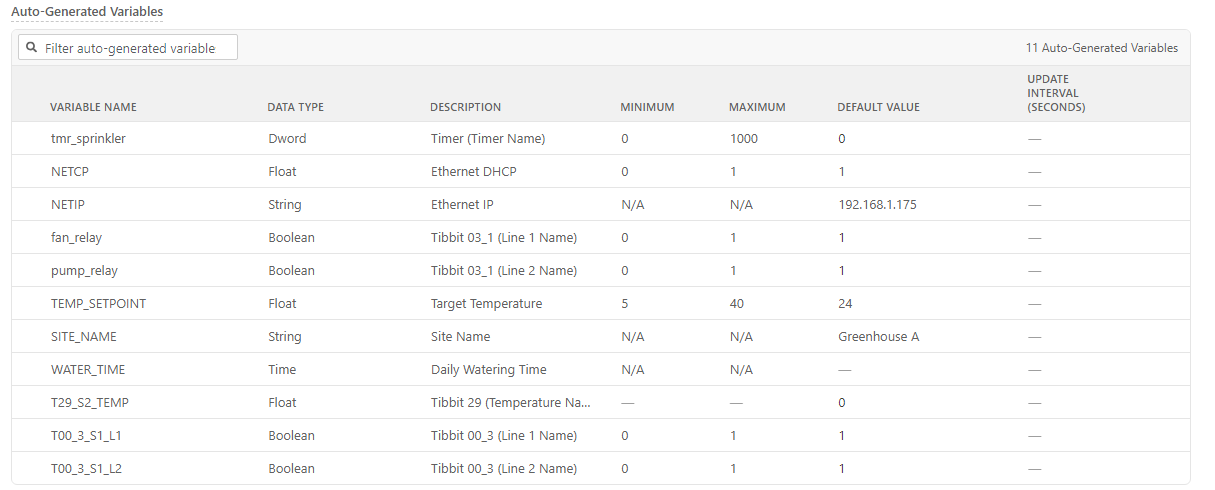
Tibbit variables are named T<tibbit>_S<socket>_<value> unless you rename them, for example T29_S2_TEMP for the temperature of a Tibbit #29 in socket 2, or T03_1_S5_L1 for line 1 of a relay Tibbit in socket 5. The type follows the hardware:
| Hardware | Variable type |
|---|---|
| Relays, digital inputs and outputs, I/O lines | Boolean, 1 or 0 |
| Temperature, humidity, ADC and DAC channels | Float |
| Light and pressure sensors, LED and PWM Tibbits | Word |
| Accelerometer axes, generic GPIO, PWM duty and frequency | Integer |
Inputs and outputs work in opposite directions:
- Inputs and sensors are read at the Update Interval set in Features › Variables (1 to 600 seconds, default 1). A single variable can override it with its own interval, from 0.001 to 60 seconds. When a new reading differs from the last one, On Variable Changed fires.
- Outputs follow their variable. Setting
fan_relayto 1 closes the relay and 0 opens it. The variable's Default Value is the line's state at boot.
For an I/O line, the Line N Mode setting chooses between Standard Input, Button Input, Output and, on line 4, Interrupt.
Polled inputs can miss a pulse that is shorter than the update interval. For buttons and pulses, use event blocks such as On Button Pressed or Interrupt, which react to the edge itself.
What AppBlocks generates
From the Hardware step, AppBlocks generates everything the hardware needs before your application starts:
- Driver libraries for each Tibbit and peripheral, added to the build automatically.
- Initialization code that runs at boot: I/O line directions and initial states, bus setup, sensor initialization and interrupt configuration.
- On Zephyr, device tree overlays and
prj.confoptions for each peripheral, and a check at boot that each device is ready. - The polling that keeps hardware variables up to date.
Open the Code step to see the result. To use hardware that isn't in the library, you can add your own peripheral as a Custom Plugin.