Features
Features are the services your firmware is built from: the network interfaces, protocols such as MQTT and Modbus, data storage, the time service, dashboards and so on. Each feature is ready-made, tested code that you switch on and configure, instead of code you write yourself.
Where the hardware describes what the device is, features describe what it can do. Your application then decides when to do it.
The Features step
Open the Features step to see every feature available for your board and runtime, grouped by category. A green check marks the features that are enabled, and each category header shows how many of its features are on.
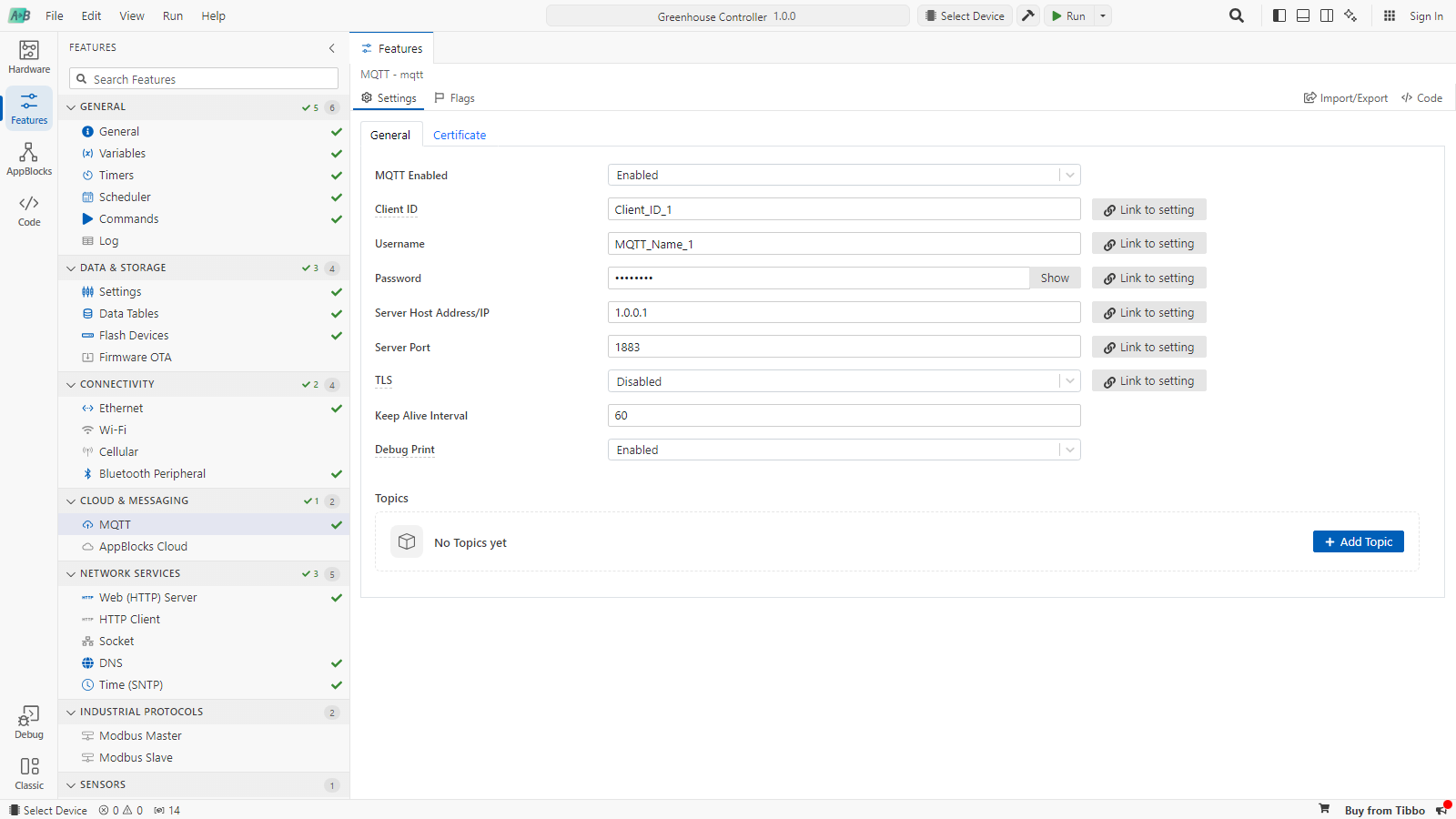
| Category | Features |
|---|---|
| General | General, Variables, Timers, Scheduler, Commands, Log |
| Data & Storage | Settings, Data Tables, Flash Devices, Firmware OTA |
| Connectivity | Ethernet, Wi-Fi, Cellular, Bluetooth Peripheral |
| Cloud & Messaging | MQTT, Azure IoT Central, AppBlocks Cloud |
| Network Services | Web (HTTP) Server, HTTP Client, Socket, DNS, Time (SNTP), MbedTLS, SNMP Agent, E-Mail (SMTP Client) |
| Industrial Protocols | Modbus Master, Modbus Slave |
| Sensors | 1-Wire/Single-Wire Sensors, WM2000EV sensors |
| Displays | LCD for TPP2, OLED Screen (SSD1305) |
| Dashboards | Web Console, LUIS (BLE Dashboard), DS Manager |
| Custom | Custom Plugins, and any Custom Services you create with them |
Use Search Features to find one by name. The page of the selected feature also has a Documentation panel that opens its page on this site.
Which features are listed
Only features your board and runtime can support are listed. For example:
- Ethernet needs a board with Ethernet, and Bluetooth Peripheral a board with Bluetooth.
- Scheduler needs a real-time clock.
- SNMP Agent, E-Mail (SMTP Client) and MbedTLS need Zephyr.
- LCD for TPP2, 1-Wire/Single-Wire Sensors and DS Manager need a Tibbo board with TiOS.
- Features that use the network, such as MQTT, HTTP Client, Web (HTTP) Server, Web Console, AppBlocks Cloud and Time (SNTP), need a network interface: Ethernet, Wi-Fi or Cellular. On a Wi-Fi-only board they appear once Wi-Fi is enabled.
The board preview on the New project page lists the features available for each runtime before you create a project.
Enabling a feature
Most features have an Enabled property at the top of their page, labelled after the feature: MQTT Enabled, Wi-Fi Enabled, Web Console Enabled and so on. Set it to Enabled to include the feature in your firmware. A disabled feature shows only that switch, or shows its other properties greyed out:

Some features have no switch:
- General and Variables are always on.
- Timers, Scheduler, Commands, Socket, Modbus Master, Modbus Slave and 1-Wire/Single-Wire Sensors turn on by themselves as soon as they contain an item, such as a variable or a timer. Add items with their Add … button, for example Add Timer.
A disabled feature is left out of the firmware entirely. It costs no memory and no start-up time, so leave off what you don't use.
Features enable what they need
Features depend on each other. AppBlocks keeps the dependencies in place for you:
- Enabling a feature enables its dependencies. For example, AppBlocks Cloud uses Settings, Log, Firmware OTA and the MQTT client library, and Firmware OTA in turn uses the HTTP client. Enabling AppBlocks Cloud switches all of them on.
- Placing a block enables its feature. Dropping an MQTT Publish block on the canvas while MQTT is disabled enables MQTT.
- Libraries that are no longer needed are removed when nothing uses them any more.
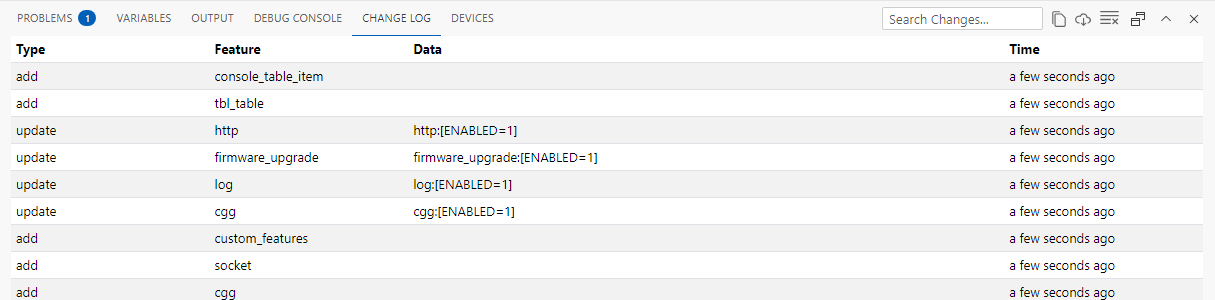
Each automatic change is recorded in the Change Log tab of the bottom panel, so you can see exactly what was added or switched on:
Properties
A feature is configured through its properties. Their values define how the feature behaves at runtime: the MQTT feature's Server Host Address/IP is the broker it connects to, and Keep Alive Interval is how often it pings it.
- Properties with an underlined label have help text. Hover over or click the label to read it.
- Large features split their properties into tabs. MQTT has General and Certificate; AppBlocks Cloud has General, Console and Advanced.
- Features that hold a list, such as MQTT topics, Modbus registers or timers, show it as a table with an Add … button. Each row has a ⋯ menu with Duplicate and Delete.
- Some properties create a variable. A Modbus register, a 1-Wire sensor or a timer gets a variable of the same name that you use in blocks, just like hardware.
AppBlocks validates the properties as you edit them. Errors appear in the Problems tab of the bottom panel, and a Project Error notification with a View button takes you to the property.
Fixed values and settings
By default a property's value is fixed when the firmware is built. Every device running the firmware uses the same broker, the same IP address, the same device name.
To make a property configurable per device, click Link to setting next to it. The value becomes the default of a setting stored on the device, and the feature reads the setting at runtime instead.
| Fixed property | Linked property | |
|---|---|---|
| Where the value lives | In the firmware | In a setting, in non-volatile memory |
| Changing it | Edit the project and upload new firmware | Change the setting from a dashboard, from blocks or from the cloud |
| Different value per device | No | Yes |
After linking, the button changes to Unlink and a tag shows the setting's name. Hovering over the property reminds you that the actual value at runtime is read from a setting.
A setting can only be changed by users if it is exposed, which means added to a dashboard: the Web Console, the LUIS mobile app, DS Manager, an LCD menu or AppBlocks Cloud. Properties that a feature applies once at startup, such as network addresses, take effect after the device restarts.
See Creating and Exposing Settings for the list of linkable properties, and this tutorial for a complete example.
Features at boot
Features start before your application does. At boot, the firmware runs through these stages:
- Boot. Each enabled feature initializes, along with the hardware. A feature always initializes after the features it depends on, so the network stack is ready before MQTT, and settings are loaded before anything reads them.
- Boot complete. Your On Boot flows run. Work that needs the network, such as connecting to the MQTT broker, starts once an interface is up.
- Running. Features keep working in the background: they poll hardware, keep connections alive and serve dashboards, and they raise the events your flows react to, such as On MQTT Notification or On Network Changed.
More on features
- Feature flags. The Flags tab of a feature associates it with one or more feature flags. When a flag is off, its features are skipped when the firmware is built. Use flags to build variants of one project, for example with and without cellular.
- Generated code. The Code button on a feature's page shows the code it adds to the firmware.
- Custom features. If what you need isn't built in, create it with Custom Plugins. A plugin of type Service appears in the Features step under Custom Services, with its own Enabled switch.
Each feature has its own page in the Features section of this documentation, for example MQTT, Wi-Fi and Settings.