Roles & Permissions
Everyone who works with a workspace holds a role — either a workspace role, for your own team, or a tenant role, for your customers' people. This page lists what each role can do.
Workspace roles
Every member of a workspace holds exactly one role. Roles split along the line between designing the product and running it.
| Role | Designs (apps, dashboards, workflows) | Runs (devices, groups, tenants) | Workspace settings |
|---|---|---|---|
| Owner | ✓ | ✓ | ✓ including deletion |
| Admin | ✓ | ✓ | ✓ |
| Member | ✓ | read-only | — |
| Operator | — | ✓ | — |
- Owner — assigned to whoever created the workspace; cannot be transferred or changed.
- Admin — everything except deleting the workspace: members, variables, import/export, plus all design and device work.
- Member — an engineer. Creates and edits applications, dashboards, SCADA screens and workflows, but can only look at devices and device groups.
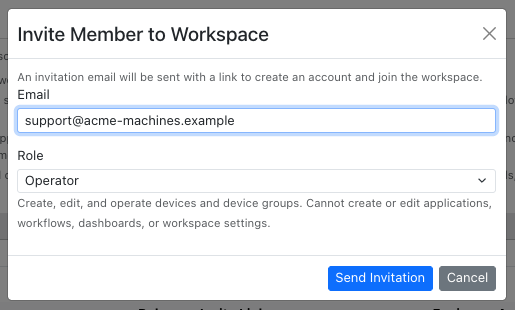
- Operator — support or field staff. Adds, edits and removes devices and device groups, and creates, renames and deletes tenants and manages their users. Sees only Devices and Device Groups in the sidebar and cannot change the design.
Only the owner and admins can rename or delete the workspace, edit workspace variables, edit tenant variable templates, export or import the workspace, or read the audit logs.
Adding people to a workspace
Open Workspace Settings → Members and click Invite Member. Enter the email address and choose a role — the dialog describes what the role allows:
The invitation is emailed and is valid for 7 days. Pending invitations are listed below the members with their role, a copyable link and the expiry date, and can be revoked at any time:
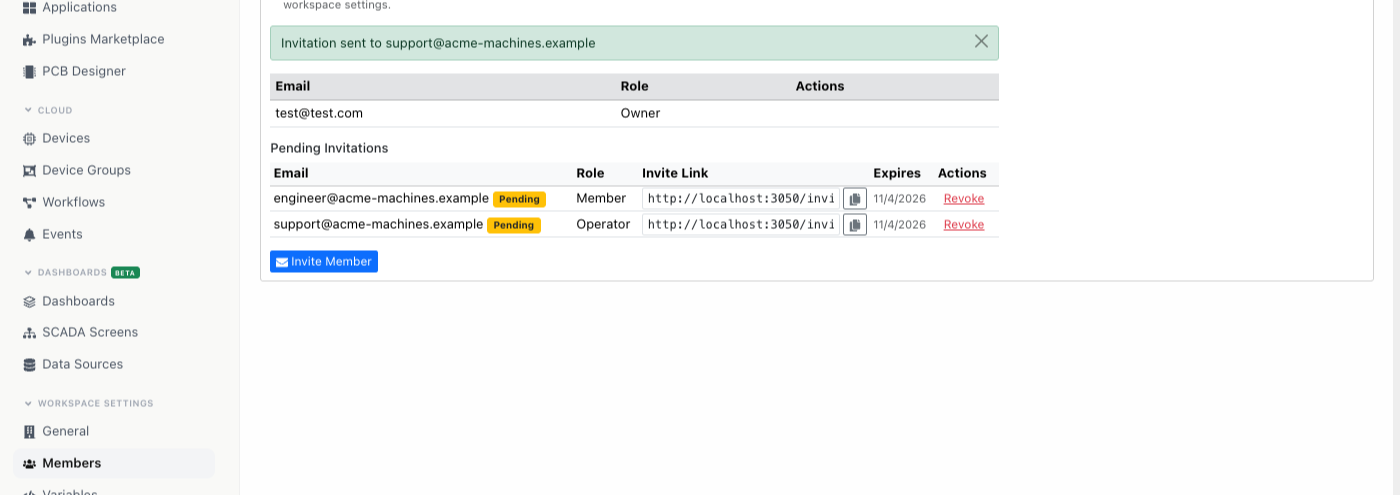
The recipient opens the link and can sign up on the spot, sign in with an existing account, or join with the account they are already signed in as. Creating a new invite for an address replaces any earlier pending one. Only the owner and admins can invite, change roles or remove members.
The Workspaces & Tenants API can also add a user who already has an AppBlocks account directly, without an invitation.
Tenant roles
| Role | Can do |
|---|---|
| Admin | Rename the tenant and edit its variable values. Add and manage devices and device groups in the tenant, and invite or remove tenant users. |
| Member | View devices, device groups, events, dashboards and SCADA screens. Cannot change tenant settings or add devices. |
Tenant users are invited the same way as workspace members, from Users next to the tenant under Settings → Tenants — see Setting up a customer. The tenant admin, along with workspace owners, admins and operators, may do this.
How workspace roles map onto tenants
Workspace membership grants access to tenants automatically; nobody on your team has to be added to each customer's tenant individually.
| Your workspace role | Effective role in every tenant |
|---|---|
| Owner or Admin | Full control of the tenant |
| Operator | Full control of the tenant |
| Member | Tenant member — sees tenant content, cannot manage the tenant |
| None (tenant user only) | Whatever role the tenant itself grants |
Listing tenants reflects this: owners, admins and operators see every tenant in the workspace and can switch between them, while everyone else sees only the tenants they belong to.
Tenant-only members
A user who belongs to a tenant but not to the workspace is a tenant-only member — the typical end customer login. They get a deliberately narrow view:
- They are placed in their tenant on sign-in and cannot switch out of it.
- The sidebar shows Devices, Device Groups, Events, Dashboards and SCADA screens. No Designer, no Workflows, no Data Sources, no workspace settings.
- The workspace member list, workspace variables and tenant variable templates are hidden from them.
- They cannot create or edit dashboards, SCADA screens, workflows or projects.
- Without the tenant admin role they cannot write device state variables or device tables — they can look, not touch.
- A tenant admin additionally gets Tenant Settings in the sidebar, where they fill in their own variable values.
See Customer: fill in their settings for what this looks like.
See Also
- Workspaces & Tenants — how the vendor and tenant model works
- Deploying to Many Sites — how to staff design, production and partner workspaces
- Roles and permissions in the API — the same rules as the API enforces them