The web console can be protected with a password, and also by roles. Two roles are available: an admin user with full access, and a regular user with restricted access. Each role has its own username and password, allowing you to expose different levels of functionality to different people.
Configure the credentials
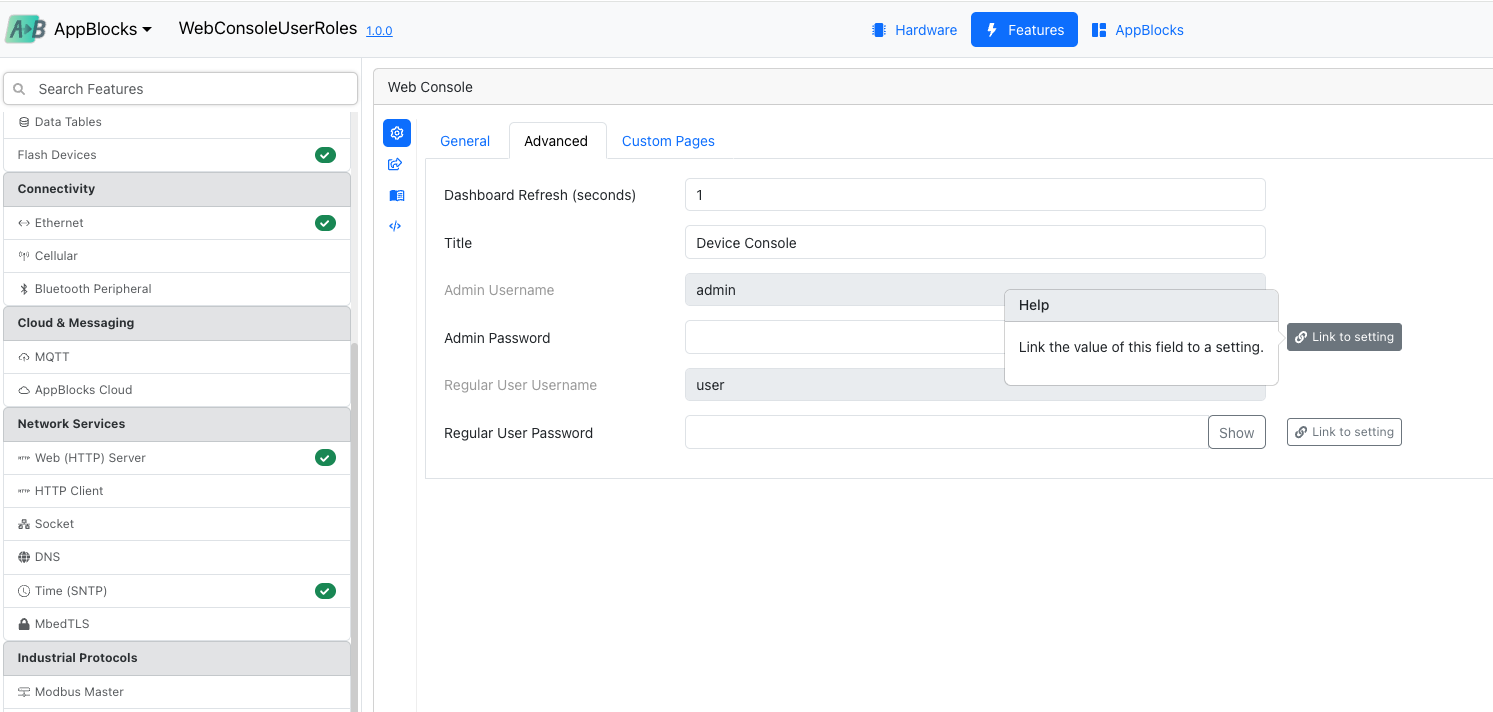
Open the Web Console feature and switch to the Advanced tab. Here you can set the username and password for each role:
- Admin Username / Admin Password — credentials for the full-access admin role.
- Regular User Username / Regular User Password — credentials for the restricted role.
Each field can either hold a fixed value or be linked to a setting using the Link to setting button, so the credentials can be changed at runtime from the device console.
Restrict pages and fields by role
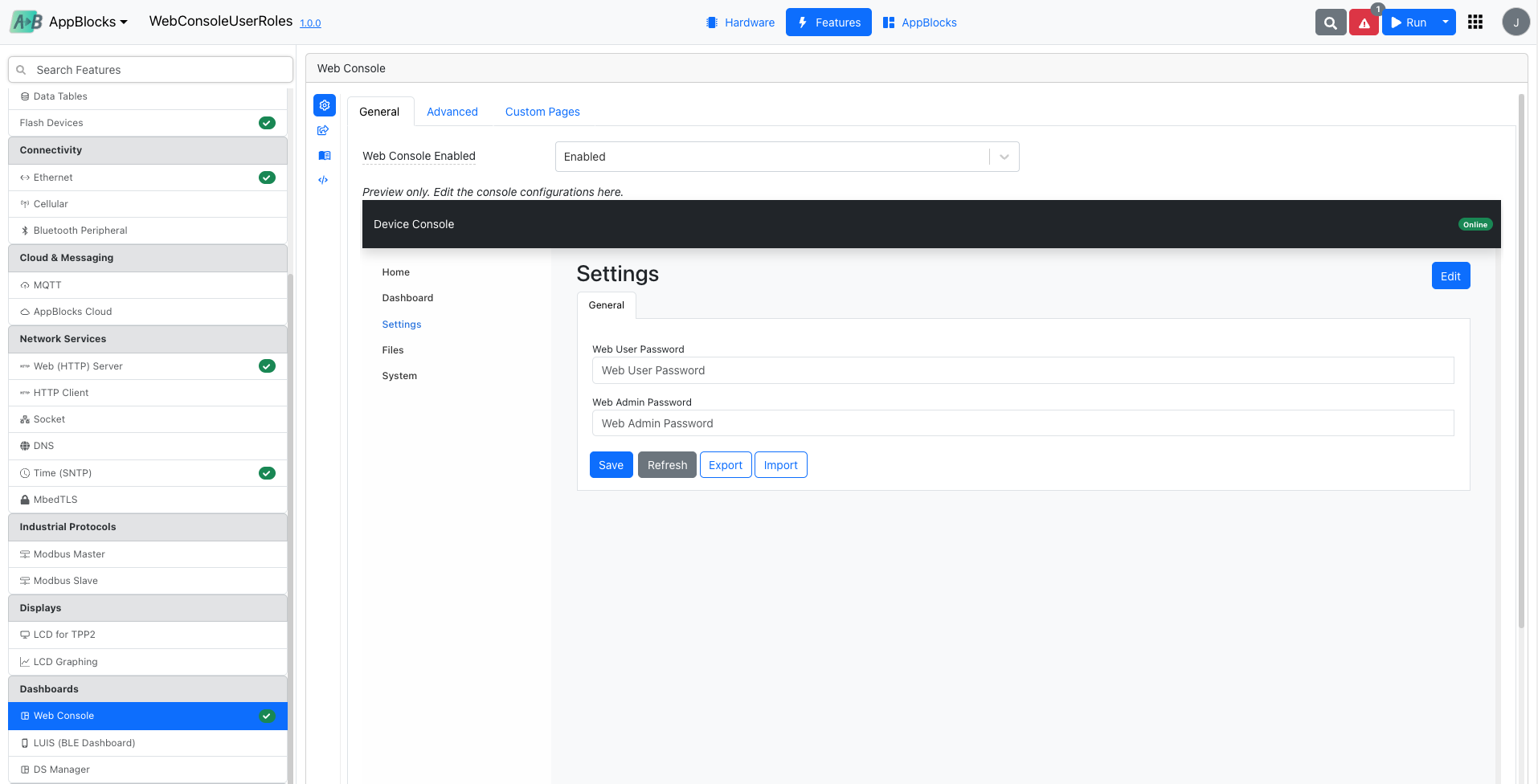
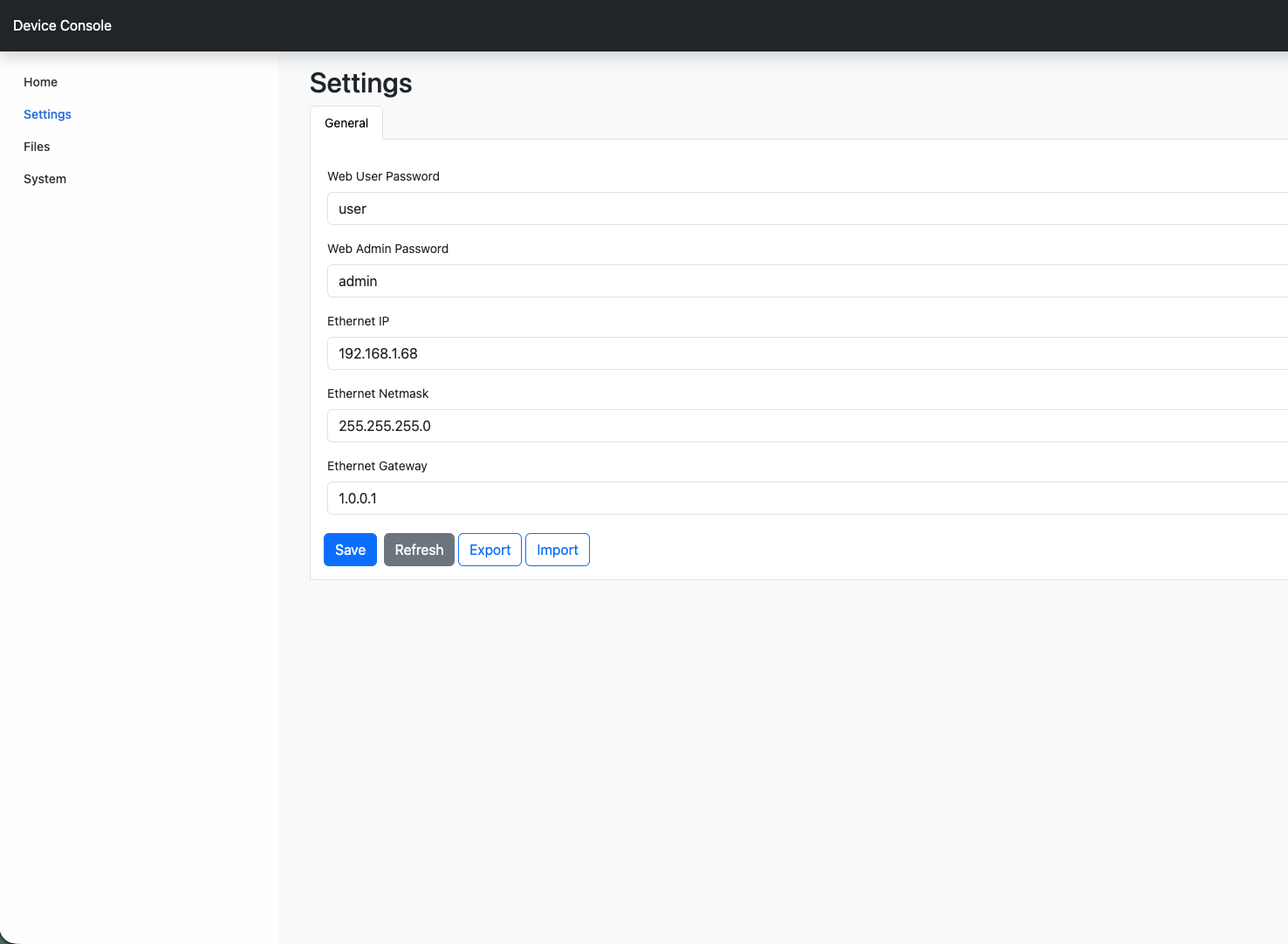
On the General tab you can preview the console and edit which pages and fields are visible to each role. In this example the Settings page exposes the Web User Password and Web Admin Password fields, which are controlled by the role permissions.
Sign in to the web console
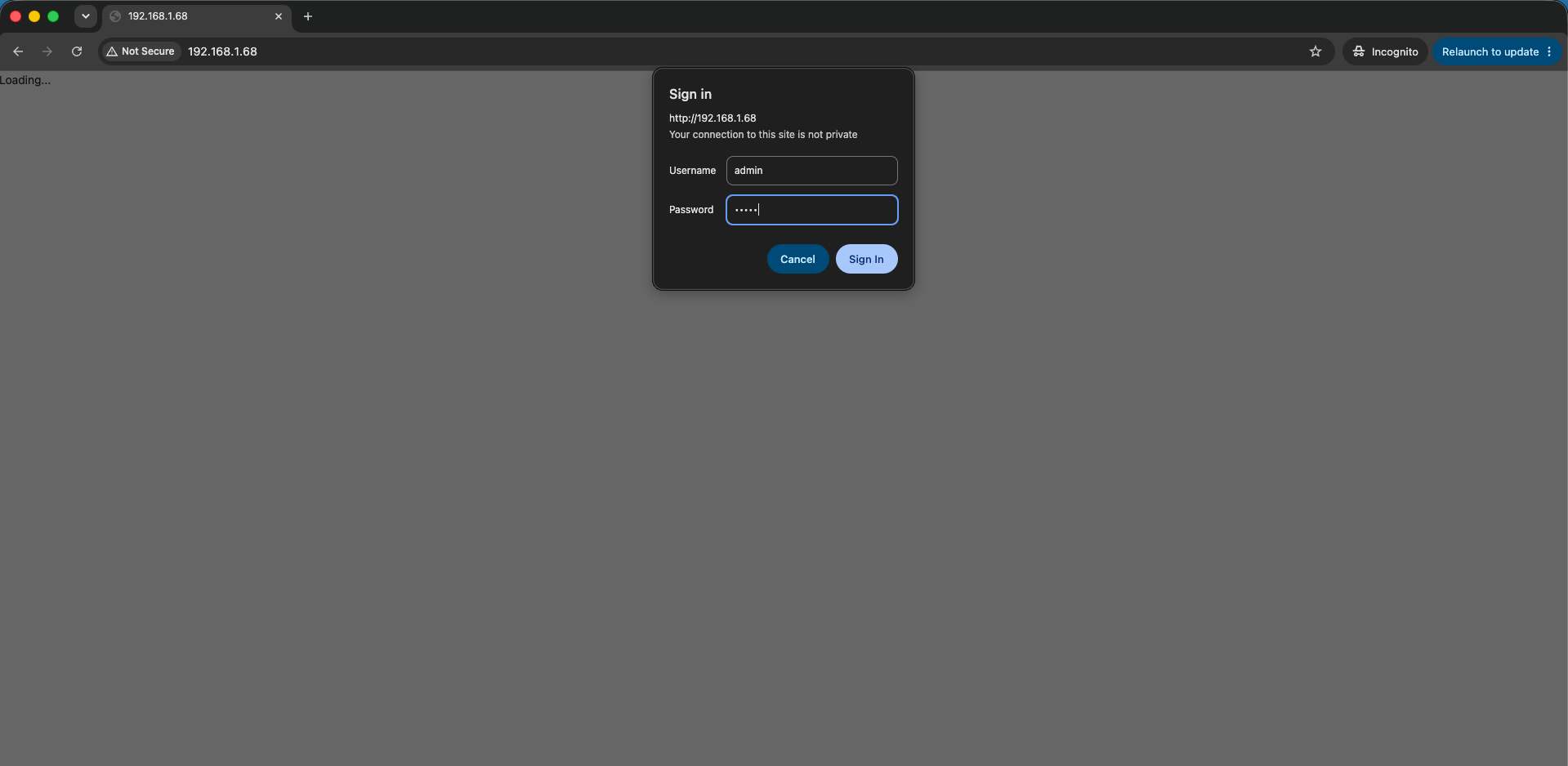
When the console is loaded in a browser, the user is prompted to sign in. Entering the admin credentials grants the admin role, while the regular user credentials grant the restricted role.
Admin role
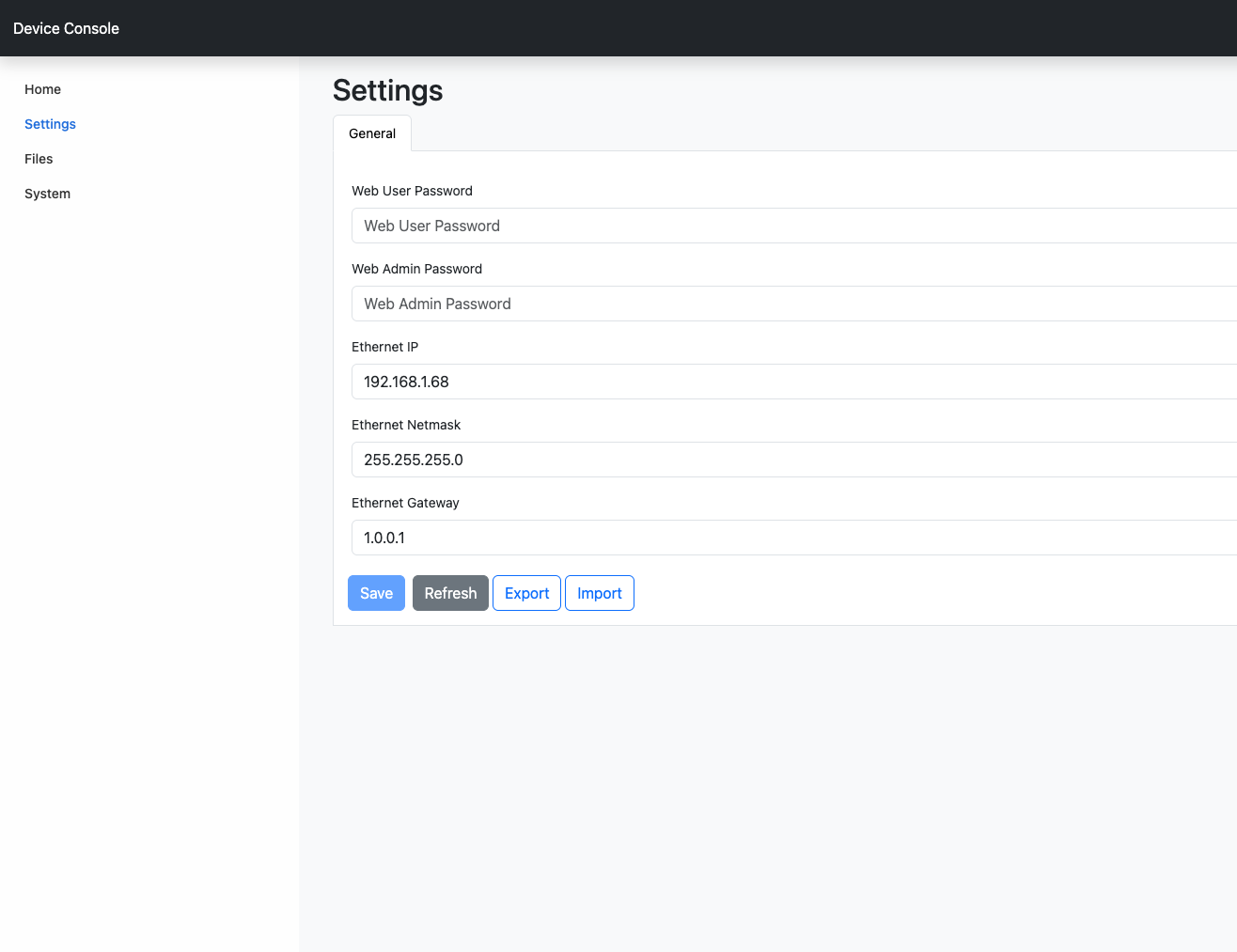
Signed in as the admin user, all fields are visible and editable. The Web User Password and Web Admin Password values are shown, along with the Ethernet network settings.
Regular user role
Signed in as the regular user, the same page hides the privileged values. The Web User Password and Web Admin Password fields are masked, while the network settings remain visible. This lets you give everyday users access to the console without exposing sensitive configuration. Regular users will not be able to make any changes to settings.