Creating and Exposing Settings
This page covers two things you do with settings besides using them in blocks: linking them to feature properties, and exposing them to users.
Creating your own settings
Create settings in Features › Settings with Add Setting. See Settings › Creating a setting for the properties and types.
Linking feature properties to settings
Feature properties are normally fixed when you build the application: the device name, the IP address, the MQTT server. Linking a property to a setting makes it configurable per device instead. The value you enter in the editor becomes the default, and the device uses whatever is stored in the setting.
Properties that can be linked show a Link to setting button:
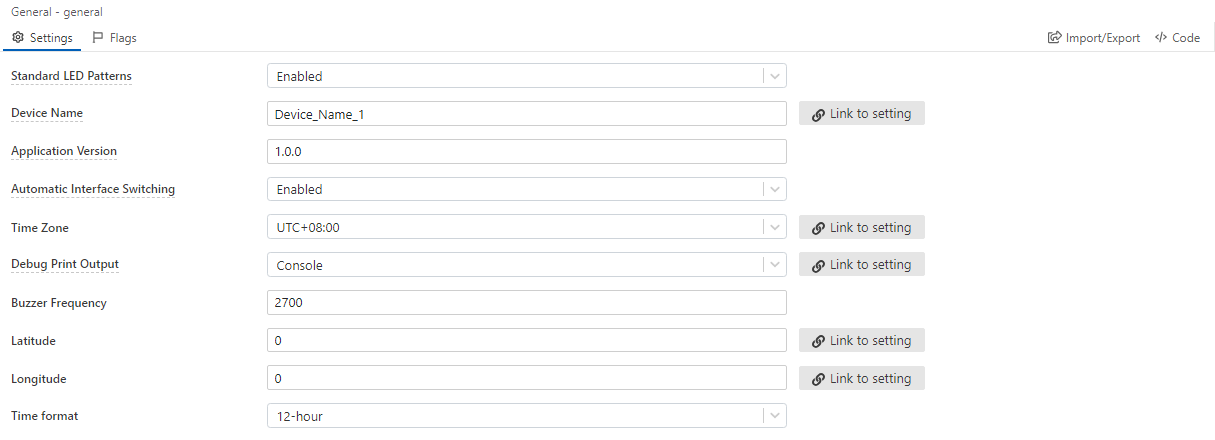
Linking a property
Click Link to setting.
- For most properties AppBlocks creates a matching setting immediately, with the right type, limits and a standard name (for example
GNAMEfor the device name), and shows Setting GNAME was added. - For properties without a standard setting, such as a serial port's baud rate, a dialog asks which setting to use. Choose one from the list, or click Create New Setting, then click Link.
After linking, the button changes to Unlink and a tag shows the setting's name. Click the tag to open the setting.

While a property is linked:
- The property's value is the setting's Default Value. Changing the property updates the setting.
- The setting's Setting Type, Minimum, Maximum and Default Value are locked, so the setting always accepts what the property accepts.
- Dashboard controls for the setting use the property's control type and options, for example a dropdown of time zones.
Click Unlink to go back to a fixed value. The setting stays in the list; delete it there if you no longer need it. If the setting is deleted while still linked, the property shows Broken link. Unlink it or link it again.
Standard linkable settings
| Feature | Settings created |
|---|---|
| General | GNAME Device Name, TZONE Device Time Zone, LOGGING Device Logging Method, LAT Latitude, LNG Longitude |
| Ethernet | NETCP Ethernet DHCP, NETIP Ethernet IP, NETNM Ethernet Netmask, NETGW Ethernet Gateway |
| Wi-Fi | WIFCP Wifi DHCP, WIFIP Wifi IP, WIFNM Wifi Netmask, WIFGW Wifi Gateway, WIFAP Wifi AP SSID, WSEC Wifi Security, WIFPW Wifi Password |
| Cellular | CELLAPN Cellular Access Point Name, CELLUN PPP Username, CELLPW PPP Password, CELLPIN SIM Card Pin |
| E-Mail (SMTP Client) | SMTP_SERVER, SMTP_PORT, SMTP_FROM_ADDRESS, SMTP_USERNAME, SMTP_PASSWORD |
| MQTT | MQTTI, MQTTU, MQTPW, MQTTH, MQTSP, MQTTLS, MQTCF, MQTCCF |
| Azure | ANAME, ADID, ASID, ADPSS, APKEY |
| AppBlocks Cloud | CGGSA, CGGID, CGGP |
| Time (SNTP) | SNTPI |
| Modbus Slave | DEVICEID |
| Web Console | WBPWD Web Admin Password, WBUPWD Web User Password |
If the standard name is already taken, a number is added, for example GNAME1.
A linked property is read wherever the feature uses it. Properties that a feature applies once at startup, such as network addresses, take effect after the device restarts.
Default linkable settings
Settings created by Link to setting are ordinary settings. They appear in Features › Settings, have a variable like any other setting, and can be used in blocks and exposed to users.

Some features add settings of their own when you enable them. For example, DS Manager adds DN Device Name, ON Owner Name and PW Password.
Exposing settings
Users can only see and change settings you add to a dashboard. Each dashboard lists settings in groups, shown as tabs:
| Dashboard | Where to configure |
|---|---|
| Web Console | Features › Web Console, then Settings › Edit in the console preview |
| LUIS | Features › LUIS (BLE Dashboard) › Groups |
| DS Manager | Features › DS Manager › Groups |
| LCD menus | Settings Groups of the LCD feature |
| AppBlocks Cloud | Features › AppBlocks Cloud › Groups |
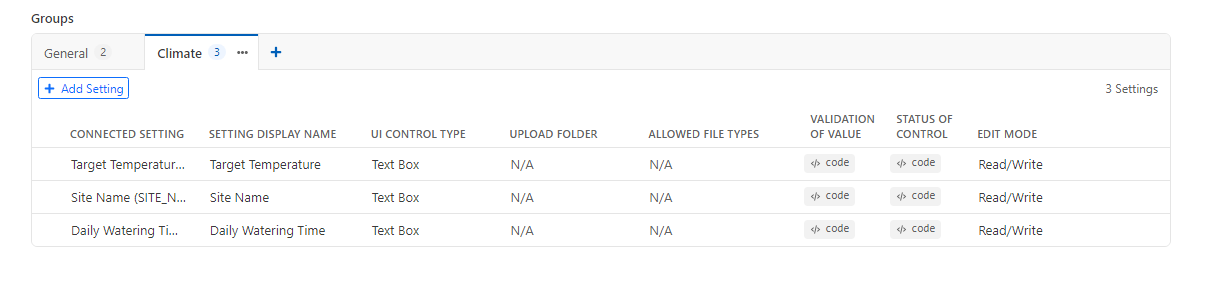
For each entry, choose the Connected Setting, the label and the UI Control Type. See Settings › Exposing settings to users for all options.
For an example, see the local or cloud dashboard example and the LUIS tutorial.